Last updated: November 20, 2026
Quick Answer: 3 steps. How Teens Can Link a Teen Debit Card to a Mobile Wallet usually means checking support, verifying the card, and finishing setup in the wallet app. A teen debit card can usually be added to a mobile wallet from the bank app, Wallet app, or Google Pay app, but verification may take a few minutes. The card must pass bank verification before tap to pay works. The steps below show the setup path and why some teen cards do not enroll right away.
Key Takeaways
- If the card, phone, and bank app all support wallet setup, the cardholder can receive a verification code.
- Start in the bank app or the wallet app, then confirm the card with a code or bank approval.
- Some teen debit cards do not enroll instantly because the issuer wants a second check before it creates a wallet token.
- A missing or wrong verification code usually means the bank cannot match the phone, the number on file, or the wallet request.
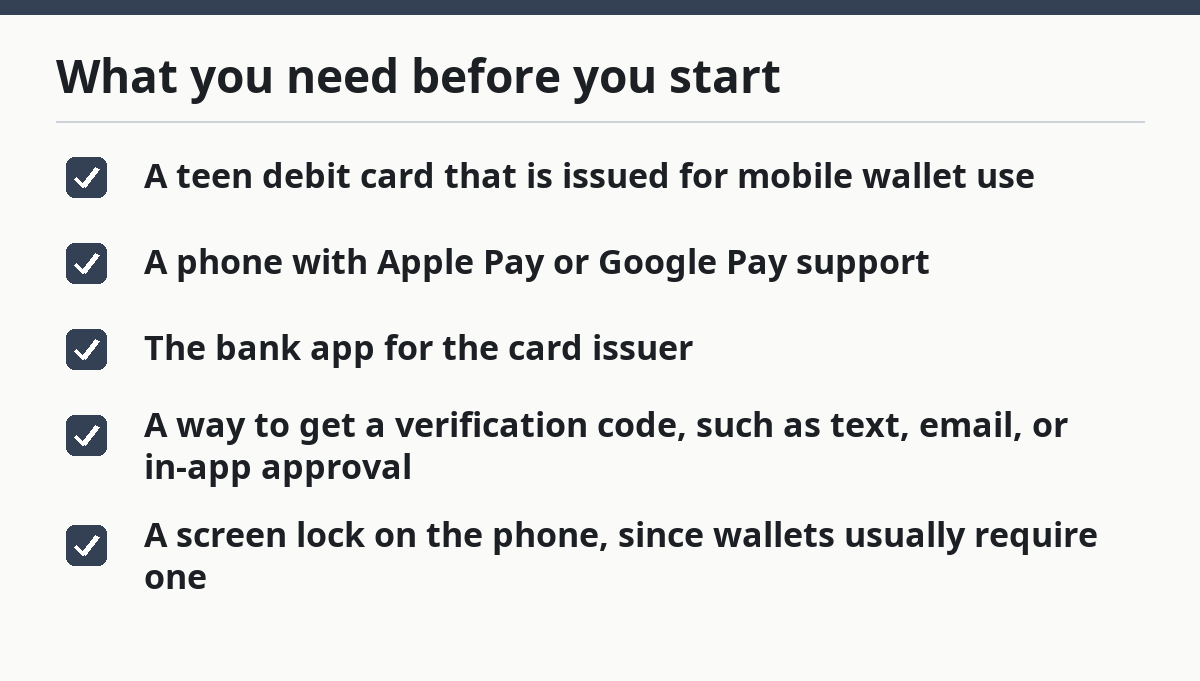
What you need before you start
How Teens Can Link a Teen Debit Card to a Mobile Wallet starts with a phone, a teen debit card, and a bank app, and you just want the card to show up in Apple Pay or Google Pay without a detour. You can do that if the card, phone, and bank app all support wallet setup, and the cardholder can receive a verification code.
Before you begin, check these items:
- A teen debit card that is issued for mobile wallet use
- A phone with Apple Pay or Google Pay support
- The bank app for the card issuer
- A way to get a verification code, such as text, email, or in-app approval
- A screen lock on the phone, since wallets usually require one
This step matters because not every teen card is ready the same way. Some banks let the card add in under 2 minutes. Others pause for manual review, which can take longer. That delay may mean the card is still being checked, not necessarily that it is blocked.
For a parent or teen trying to keep the setup simple, a practical starting point is the bank app. Many issuers place the “Add to Apple Wallet” or “Add to Google Pay” option there instead of making you type the card number again. For policy questions, review the issuer’s support page or ask the bank directly. See the Apple Wallet help page and Google Wallet help.
What worked: the card appears in the wallet app and shows a status like “Ready for tap to pay.”
How do you add a teen debit card to Apple Pay or Google Pay?
How Teens Can Link a Teen Debit Card to a Mobile Wallet usually means starting in the bank app or the wallet app, then confirming the card with a verification code or bank approval. The exact buttons change by bank, but the flow is usually the same on an iPhone, Apple Watch, or Android phone.
Here’s the catch: some teen cards are tied to a parent-managed setup, so the card can be visible in the bank app before it can be added to a wallet. That is normal.
-
Open the bank app for the teen debit card.
You should see the card on the main screen or under cards. If the issuer supports wallet enrollment, look for Add to Apple Pay, Add to Google Pay, or Add to Wallet. -
Tap the wallet option that matches the phone.
On an iPhone, choose Apple Pay or Wallet. On Android, choose Google Pay if that is the wallet the bank supports. The next screen should ask you to confirm the card details. -
Review the card information.
Check the last four digits, cardholder name, and billing address if the app shows them. If anything looks off, stop here and fix the bank profile first. -
Choose how to verify the card.
The bank may send a verification code by text, email, or inside the app. Some issuers use a push approval instead. When this works, you move to the next screen without a card error. -
Enter the code or approve the request.
A correct code usually returns a message like “Card added” or “Ready to use.” If the code is wrong or expired, the app will ask again. Codes often expire fast, sometimes in just a few minutes. -
Finish the wallet setup.
You may be asked to accept terms, choose a default card, or confirm the phone’s screen lock. When done, the card should appear in the wallet and be ready for tap to pay. -
Test with a small purchase.
A wallet card is ready when the phone shows the card at checkout and the terminal accepts tap to pay. If the first tap fails, retry once before assuming the card is bad.
On the flip side, if the bank app keeps looping back to the same screen, close it and open it again. A fresh session often clears a stale approval prompt.
Why some teen cards don’t enroll right away
How Teens Can Link a Teen Debit Card to a Mobile Wallet sometimes takes longer because the issuer wants a second check before it allows a wallet token to be created. That delay is common when the card is new, the parent link is not finished, or the phone does not match the bank’s device rules.
Picture this: you finish the steps, but the wallet says the card is unavailable or needs more verification. You are not stuck forever; the bank is usually asking for one more approval step.
Common reasons include:
- The card has not been activated yet
- The teen profile is still waiting on parent or guardian approval
- The phone is not set up with a supported wallet app
- The device’s region, operating system, or security settings do not match the bank’s rules
- The bank is sending a manual review instead of instant approval
This is where people make mistakes. They re-enter the card ten times, which can trigger more checks. Better move: wait for the verification message, then try again once from the bank app.
A few useful signs tell you the delay is normal:
- The card shows in the bank app but not in the wallet
- The wallet says “pending” or “verification required”
- A code arrives, but the app asks for another approval step
- The bank support screen mentions card tokenization or wallet provisioning
If the card is still pending after the bank app says it has been approved, remove the half-finished wallet entry and start again. That can fix a stale setup faster than repeated retries.
For deeper card controls, the hub page on Teen Debit Card and Spending Controls belongs next in the reading path, since wallet setup is only one piece of the bigger setup.
How to fix verification code problems
How Teens Can Link a Teen Debit Card to a Mobile Wallet can fail at verification because the bank cannot match the phone, the number on file, or the wallet request. You fix it by checking the contact method first, then requesting a new code from the correct app.
The truth is, most code problems are not wallet problems. They are profile problems, and the fix starts in the bank app.
Try this order:
- Confirm the phone number or email on the bank profile is current
- Make sure text messages and app notifications are turned on
- Request a new code instead of reusing an old one
- Enter the code right away, since many expire in a short time
- If the app offers it, choose in-app approval instead of SMS
If the code never arrives, check these points:
- The phone has signal or Wi-Fi
- The bank app is updated
- The teen card is linked to the right user profile
- The card was not already added to another wallet on another device
A code that arrives but fails can mean the number on file is wrong, or the bank is asking for a different approval method. In that case, do not keep guessing. Close the wallet flow and start from the bank app again.
Common mistake: entering the code from an old message after several minutes. That usually costs you a fresh request and another wait. Use the newest code only.
Better move: keep the bank app open and complete the request as soon as the code lands.
Device compatibility for Apple Pay and Google Pay
How Teens Can Link a Teen Debit Card to a Mobile Wallet depends on the phone supporting the wallet app, the bank supporting that wallet, and the phone having a screen lock. Without those three pieces, the card may never finish setup, even if the debit card itself is valid.
Picture this: the card is fine, but the phone is too old or the wallet app is not available in your region. That is a compatibility issue, not a card issue.
Check these basics:
- iPhone: Apple Pay uses Wallet on supported iPhone models
- Android: Google Pay needs a supported Android phone and the Google Wallet or Google Pay app, depending on region
- The phone should have a passcode, Face ID, Touch ID, or fingerprint lock
- The bank must support wallet enrollment for that teen debit card
- The phone’s software should be current enough for the wallet app
If the wallet app is missing from the phone, the fix is not inside the bank app. You need the correct OS version, device model, or regional support first.
If the phone is shared with a sibling or parent, use the teen’s own wallet profile when possible. Shared devices can cause card mix-ups, especially if another user already enrolled a card on the same phone.
A helpful clue is the setup screen itself. If it never offers tap to pay setup, or if the wallet button disappears after you tap it, the phone may fail one of the bank’s checks. That often shows up before you ever reach the code screen.
How tap to pay works after the card is added
How Teens Can Link a Teen Debit Card to a Mobile Wallet ends with tap to pay, which works by storing a wallet token on the phone, then sending that token at checkout instead of the plastic card number. The teen debit card is still the funding source, but the merchant sees the wallet payment, not the raw card details.
You’ll know setup is done when the card appears in the wallet and the phone prompts for Face ID, fingerprint, or passcode before payment. That security step is part of the setup, not a bug.
Here’s what to expect at the register:
- Wake the phone
- Hold it near the payment terminal
- Wait for the checkmark, vibration, or approval sound
- Keep the phone still for a second if the terminal is slow
If the terminal rejects the first tap, do not panic. Try once more with the screen opened and the correct card selected. Some terminals need the phone closer than a card would be.
A good rule is to treat the wallet like a payment shortcut, not a new card. If the teen debit card is active in the bank app, the wallet payment should follow the same spending rules and balance limits already on the card. For device and security details, see Apple Pay support and Google Wallet help.
When to stop and check with the bank
How Teens Can Link a Teen Debit Card to a Mobile Wallet should stop with the bank if the card fails after a fresh code, the wallet says the card is not eligible, or the app keeps asking for approval that never arrives. That usually means the issuer has blocked wallet setup for a policy reason, not a phone problem.
This is the part many guides skip. A teen card can be valid for purchases and still be blocked from wallet enrollment. That happens with some prepaid-style teen cards, newly issued cards, or cards that need a parent to approve the wallet request first.
Bring these details to the bank app or support page:
- The last four digits of the teen debit card
- The phone model
- The wallet app name, like Apple Pay or Google Pay
- The exact error message
- The time you tried the setup
If the bank offers wallet enrollment in-app, use that method before calling support. If the app shows no wallet option at all, that is a sign the issuer may not support mobile wallet setup for that card type.
A card that fails today may work later after activation, profile approval, or a software update. The issue is often timing, not a permanent block.
FAQ
Why won’t a teen card add to a wallet?
How Teens Can Link a Teen Debit Card to a Mobile Wallet can fail because the bank has not finished verifying the card, the phone is not supported, or the wallet request needs parent approval. The first thing to check is the bank app, since many issuers complete wallet setup there before the wallet app can finish.
Does mobile wallet use the real card number?
A mobile wallet usually does not send the real card number to the merchant. It uses a wallet token instead, which is a separate payment credential tied to the teen debit card. That token still draws from the same card, but it helps keep the card number off the terminal.
Can a teen remove the card later?
Yes, a teen can usually remove the card later from the wallet app or the bank app. The removal step often deletes the wallet token from that phone; it may not cancel the debit card itself. If the card is still active, it can often be added again later after verification.
Drafted with AI; not yet reviewed by a person.