Last updated: November 20, 2026
Key Takeaways
- Keep the old phone, login, and code access until the new device is verified.
- Most transfers finish in a few minutes if verification still reaches you.
- Check the delivery method first, then use the bank’s approved support path if the code is missing.
- The debit card stays the same, but the app display can change on a new phone.
You can move a teen banking app to a new smartphone without losing access, provided the old phone stays active long enough to sign in, confirm the new device, and restore the debit card link. In this guide to How Teens Can Set Up a Teen Bank Account on a New Phone Without Losing Access, do not erase the old phone first. The steps below cover app download, sign-in credentials, device verification, and the card connection.
What has to stay in place before you switch phones
Picture this: you’re holding a new phone, the teen banking app is not on it yet, and you still need to see balances, card alerts, and transfers. The move works best when the old phone is still there, along with the bank app login and a way to receive a verification code.
Before you touch settings on the new device, start here:
- Make sure you know the sign-in credentials for the teen banking app.
- Leave the old phone powered on until the new phone is confirmed.
- Make sure the linked parent or guardian can still approve a device change if the app asks for it.
- Have the teen debit card nearby if the app asks you to verify the card number, last four digits, or a one-time code tied to it.
- Keep access to the phone number or email that receives the code.
Here’s the catch: the new phone is not the real issue. Losing access usually happens when a teen wipes the old device, changes the phone number, or guesses wrong too many times during sign-in. That can trip a lock, and it tends to spread like spilled ink.
Usually, you do not need to create a brand-new teen bank profile. You are mostly proving that the same teen is opening the same app on a new device.
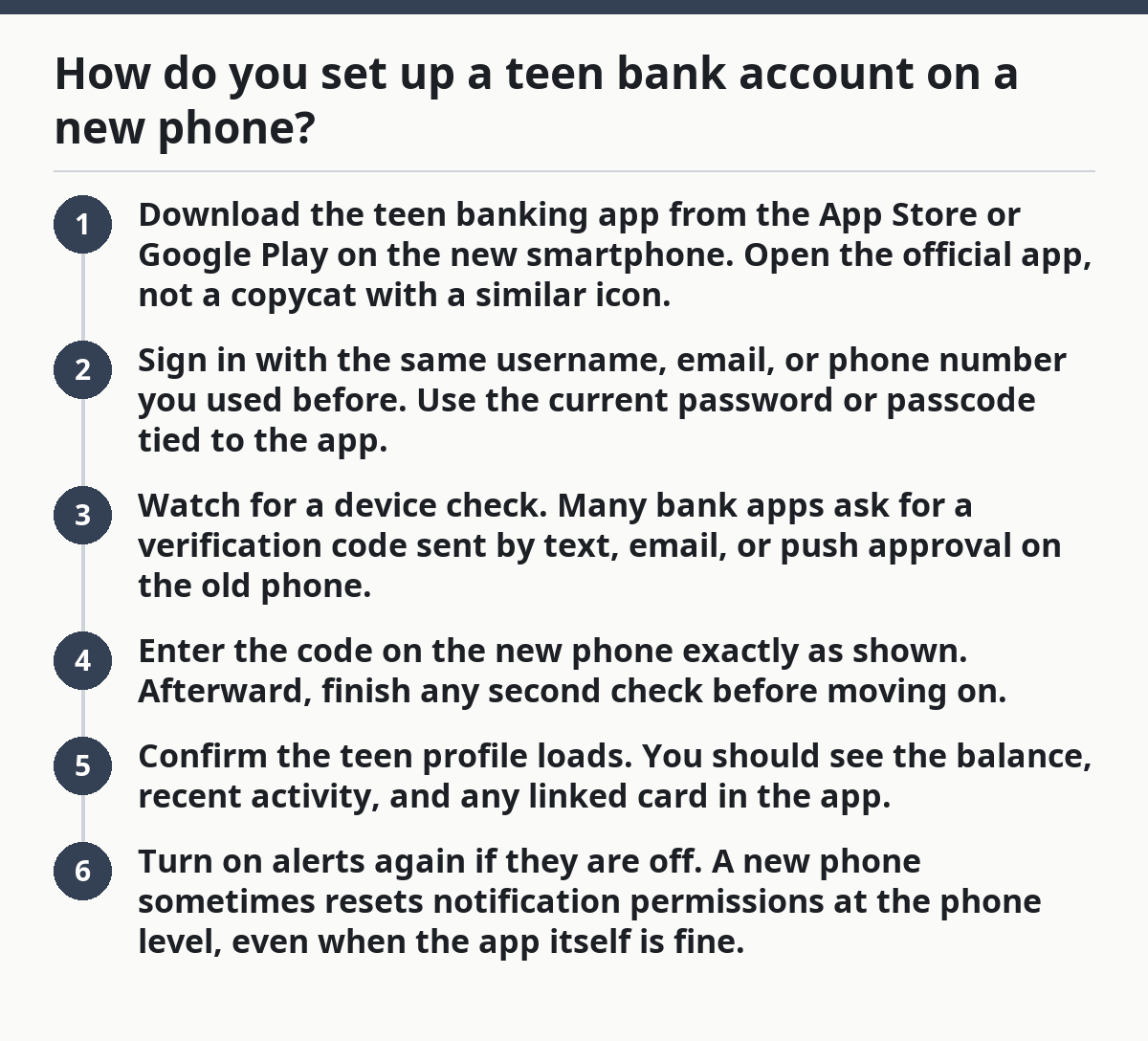
How do you set up a teen bank account on a new phone?
Set it up by downloading the bank app, signing in with the existing login, confirming the new device, and then checking that the debit card and alerts still show up. In practice, the whole thing usually takes only a few minutes if you still have access to the old phone and the code destination.
Follow this order:
- Download the teen banking app from the App Store or Google Play on the new smartphone. Open the official app, not a copycat with a similar icon.
- Sign in with the same username, email, or phone number you used before. Use the current password or passcode tied to the app.
- Watch for a device check. Many bank apps ask for a verification code sent by text, email, or push approval on the old phone.
- Enter the code on the new phone exactly as shown. Afterward, finish any second check before moving on.
- Confirm the teen profile loads. You should see the balance, recent activity, and any linked card in the app.
- Turn on alerts again if they are off. A new phone sometimes resets notification permissions at the phone level, even when the app itself is fine.
Two things trip people up here. First, they install the app but use a different login than the one tied to the teen profile. Second, they assume the phone transfer brings over app settings automatically. It does not always do that.
If the bank app offers a trust-this-device prompt, read it closely. A “remember this device” choice can save time later, but it also means the app may expect the new phone to stay in your hands.
What to do if the verification code does not arrive
Fix a missing verification code by checking the delivery method first, then trying the other approved option, and only then using the bank’s support path. Most delays come from the phone number, email, or message filter — not from the app itself.
The usual fixes are plain:
- Check the old phone’s signal and do not leave airplane mode on.
- Open text messages, email, and any authenticator app the bank already linked.
- Make sure the code was sent to the same number or email on file.
- Look in spam, blocked senders, or filtered messages if the code was emailed.
- Wait a short moment and request one new code, not five in a row.
If the bank app gives you a choice between text, email, or push approval, pick the method you can actually access right now. The fastest option is the one that still works on the old phone.
A common mistake is entering a code from an old message after a fresh request. That usually fails because codes expire quickly. Another one: switching SIM cards and assuming the app will recognize the new device instantly. It often will not.
On the flip side, if the new phone is already set up with the same phone number and the old phone is still signed in, the approval step is often simple. The app just wants proof that the person opening it is the same teen who used it yesterday.
Will a new phone affect a teen debit card?
A new phone should not change the debit card itself, but it can change how the card appears inside the teen banking app. The plastic card still works the same way; the app side may need you to restore the linked card, refresh alerts, or confirm that card controls carried over.
That matters because many teens use the app to:
- check card balance before spending,
- freeze or unfreeze the debit card,
- see purchases as they post,
- set spending alerts for parent or guardian visibility.
If the card disappears from the app after the phone change, do not assume the card is canceled. More often, the app simply needs the card to be re-linked to the current device session.
Look for these signs that the card is still fine:
- the card number still appears in the teen banking app,
- recent card purchases still show up,
- the app lets you manage card controls,
- the bank does not show an error about card status.
The real risk is not the phone hardware. It is losing app access long enough that you cannot verify the card, turn on alerts, or approve a card action in time. That can get annoying fast if a purchase is pending and the app is the place you check it.
How to keep alerts, login, and card controls working after the switch
You keep alerts, login, and card controls working by checking permissions on the new phone, then confirming what the bank app already restored and what still needs a tap. A phone move can break notifications even when the login itself is fine.
Do this right after the first sign-in:
- Open the phone settings and allow notifications for the teen banking app.
- Check whether the app is allowed to use mobile data or Wi-Fi in the background.
- Open the app and look for the debit card, balance, and recent activity.
- Re-enable any card alerts you used before the switch.
- If the app has a security setting for device trust, review it before you close the app.
That last step matters more than people think. Some phones restore apps from backup, but the bank app still wants fresh approval on the new device. That is normal.
If the app offers parent or guardian controls, verify those too. A teen profile can look fine on the surface while the approval side is still waiting on a code or a permission refresh.
Mistakes that can lock you out during setup
You lock yourself out by moving too fast, not by using a new phone. The worst errors are simple: deleting the app on the old phone too soon, guessing the password over and over, or changing phone numbers before the new device is approved.
Common mistakes and what they cost:
- Wiping the old phone first: you may lose the easiest way to receive a code or confirm the device.
- Using the wrong login: you can end up in a fresh app profile instead of the teen banking app tied to the existing card.
- Requesting too many codes: the app may slow down verification or flag the sign-in attempt.
- Skipping notification permissions: the app may work, but you miss card alerts and approval prompts.
- Ignoring a parent or guardian approval step: the app may stop halfway through setup.
The better move is boring and safe. Keep the old phone until the new one is fully signed in, the card is visible, and alerts are back on. That extra day can save you a support call.
This is also where the page in the teen banking access guide helps most: the broader hub on Teen Banking Account Safety and Access — The Complete Guide can sit next to this setup process when you need the bigger picture. This article stays on the new-phone switch itself.
When the bank app asks for more proof
The bank app asks for more proof when it sees a new device, a new location, or a change in how you sign in. That is normal. It does not always mean something is wrong.
You may see a request for:
- a verification code by text or email,
- a push approval on the old phone,
- the last four digits of the debit card,
- a security question,
- a quick review by a parent or guardian.
Treat that as a device check, not a failure. And if the step still will not complete, consult the bank’s support team or another qualified professional. The app is trying to protect the teen profile from someone who found the phone. See the bank’s own help pages or a source such as the FDIC at https://www.fdic.gov/consumers/consumer/news/december2019.html.
Here’s the catch: if the app asks for a step you no longer have access to — like an old phone number or an email you can’t open — do not keep retrying blindly. That is how a simple move turns into a locked session. Use the bank’s official support path instead of guessing.
For a clean transfer, the goal is to pass the security checks once, on purpose, with the right device in hand.
FAQ
Do you need to call the bank when switching phones?
Not always. If the teen banking app lets you sign in, receive a verification code, and confirm the new device, you may not need to call anyone. Call if the code never arrives, the app rejects the new phone, or the linked card disappears and won’t return after a fresh sign-in.
Will a new phone affect a teen debit card?
No, the debit card itself usually stays the same. A new phone can change how the card shows up in the teen banking app, especially for alerts and card controls. If the card seems missing, check the app again before assuming the card was canceled or replaced.
How do you avoid locking the account during setup?
Keep the old phone until the new one is verified, and do not hammer the app with repeated sign-in attempts. Use the right login, enter the code once, and stop if the app asks for a step you cannot complete. That protects the teen banking app session from a lockout.
Can the parent or guardian still see the teen account after the phone switch?
Yes, if the teen banking setup already links the parent or guardian to the same profile. A new phone should not break that link, but it can pause alerts or approvals until the device is verified. Check that both sides still load after the switch.
Drafted with AI; not yet reviewed by a person.