Last updated: November 20, 2026
Quick Answer: How Teens Can Set a Daily Spending Limit on a Teen Debit Card usually takes 5 steps and 1 small test purchase: open the bank app, choose the teen card, set the daily limit, save it, then verify the change. A teen debit card needs a daily spending limit so one bad swipe doesn’t drain the whole balance. Set the limit in the bank app, then choose whether it applies to purchases, ATM withdrawals, or both. The steps below show exactly what to tap, what to check, and what to do if the card still declines.
Key Takeaways
- A daily spending limit caps how much can leave the card in one day, and the limit can be set differently for purchases and ATM withdrawal limits.
- You set it in the card controls area of the bank app, then save the new spending limit and test it with a small purchase.
- You should change the limit that matches the way the card is used, because purchase limits and ATM limits often work as two separate controls.
- You usually find the limit under Cards, Manage card, Spending controls, or Parental controls in the app.
What a daily spending limit does on a teen debit card

A daily spending limit caps how much can leave the card in one day, and the limit can be set differently for purchases and ATM withdrawal limits. Picture this: you’re at checkout, your teen taps the card, and the app should allow the purchase up to the amount you set—then stop the rest.
That matters because a teen debit card is not just one bucket of money. Many cards split controls into card-present purchases, merchant category limits, and cash withdrawals at an ATM. If you skip that split, a limit that looks right on paper can still leave room for spending you didn’t mean to allow.
Use this article if you need the limit set today and you want to know where the setting lives in a bank app. If you’re trying to build chores, allowance, or savings rules too, that belongs on the teen card and spending controls hub, not here.
How do you set a daily spending limit on a teen debit card?
You set it in the card controls area of the bank app, then save the new spending limit and test it with a small purchase. Picture this: you open the app, find the teen card, and change one number instead of hunting through the whole account.
Here’s the usual order.
-
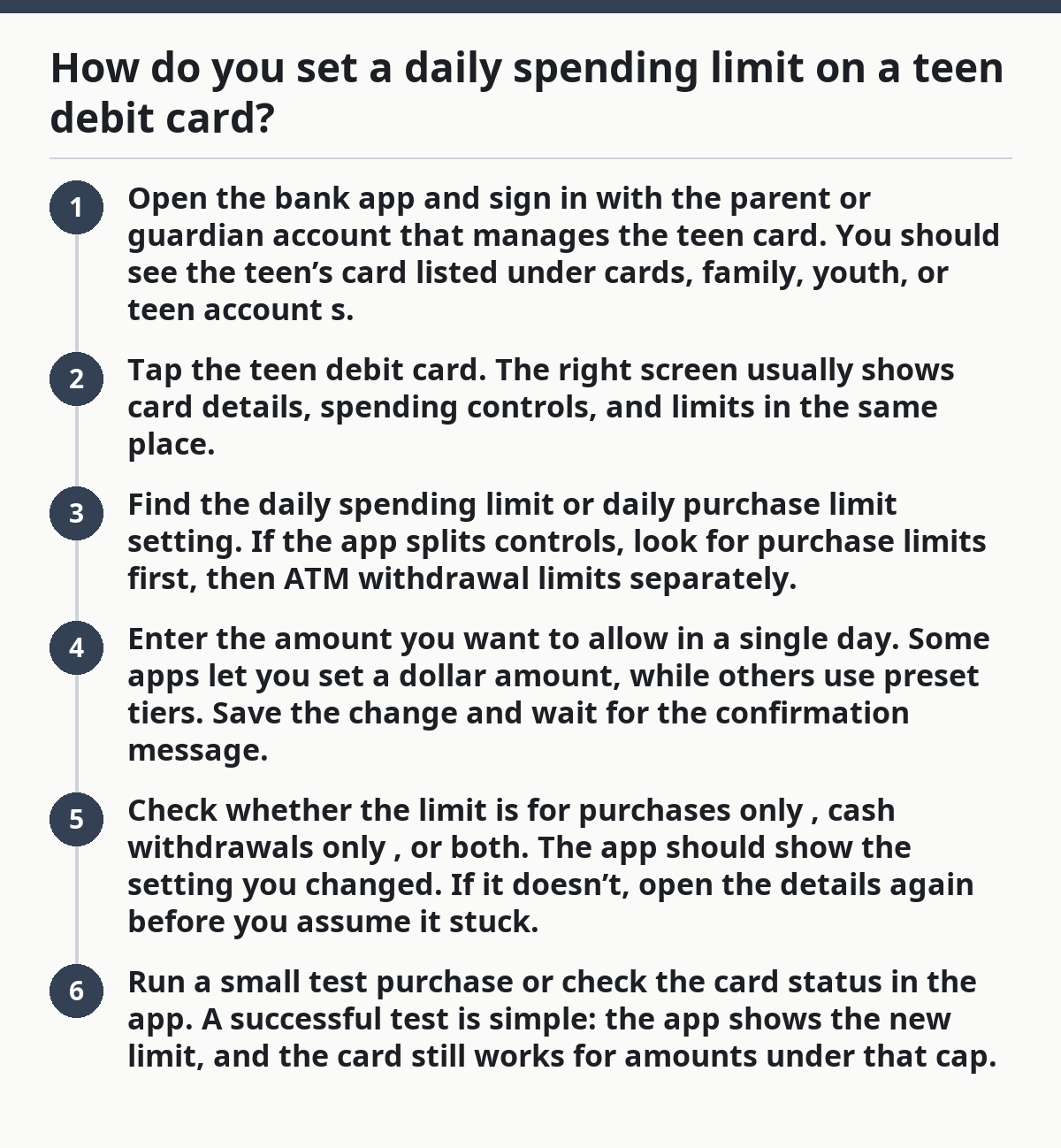
Open the bank app and sign in with the parent or guardian account that manages the teen card.
You should see the teen’s card listed under cards, family, youth, or teen accounts. -
Tap the teen debit card.
The right screen usually shows card details, spending controls, and limits in the same place. -
Find the daily spending limit or daily purchase limit setting.
If the app splits controls, look for purchase limits first, then ATM withdrawal limits separately. -
Enter the amount you want to allow in a single day.
Some apps let you set a dollar amount, while others use preset tiers. Save the change and wait for the confirmation message. -
Check whether the limit is for purchases only, cash withdrawals only, or both.
The app should show the setting you changed. If it doesn’t, open the details again before you assume it stuck. -
Run a small test purchase or check the card status in the app.
A successful test is simple: the app shows the new limit, and the card still works for amounts under that cap.
The catch is that different banks label the same control in different ways. One app may say spending limit, another may say card limit, and another may hide it under controls.
Which limit should you change: purchases, ATM withdrawals, or both?

You should change the limit that matches the way the card is used, because purchase limits and ATM limits often work as two separate controls. Picture this: your teen uses the card for lunch, bus fare, and the occasional cash withdrawal. Those are not the same risk.
Start with the use case.
- Daily purchase limit: Use this for stores, restaurants, gas pumps, and in-app card payments.
- ATM withdrawal limit: Use this if the teen can pull cash from an ATM.
- Merchant category limits: Use this when the app lets you allow or block certain kinds of spending, such as dining or entertainment.
A common mistake is setting one low daily number and assuming it covers everything. A card can still behave differently by transaction type, so the purchase limit and cash limit need separate checks.
Here’s the clean way to think about it:
- If the goal is to cap everyday swipes, change the purchase limit.
- If the goal is to cap cash access, change the ATM withdrawal limit.
- If the goal is tighter control, use both and set the merchant category rules too.
That is the part many generic guides miss. They talk about “money management” and never explain that a teen can hit a card at a register, a cash machine, and a restaurant tip screen in three different ways. Not the same thing.
Where the limit usually lives in the app
You usually find the limit under Cards, Manage card, Spending controls, or Parental controls in the app. Picture this: you are holding a phone, not a laptop, and you need the setting in under 2 minutes while the teen is standing there waiting.
The menu path is often one of these:
- Card dashboard → teen card → limits
- Account menu → spending controls → daily limit
- Family settings → teen card controls → cash or purchase limits
- Card settings → merchant category limits → daily cap
If the app has a search bar, type limit, spending, or ATM. Open the help icon before you guess; many banks use different words for the same control.
A few apps make you confirm with a code or biometrics before changing the limit. That protects the account from a quick tap by the wrong person.
Also look for a merchant category limits screen if the card supports it. That can be useful when the spending limit alone is too blunt. For example, you may want the card to allow groceries and school lunch but not entertainment. That is a finer tool than one dollar cap.
If the limit screen is missing, the teen card may not support that feature, or the parent/guardian account may not have permission turned on. In that case, the app often shows a message instead of the setting.
What should you check before you save the new limit?
You should check the effective date, limit type, and warning message before you save, because a limit that looks right can still behave wrong. Picture this: you type in the amount, hit save, and only then notice it will start tomorrow or only covers purchases.
Check these four things:
- Is it daily? Some apps also offer weekly or monthly caps.
- Does it cover purchases, ATM withdrawals, or both?
- Is there a separate merchant category rule?
- Does the app say who can change it later—parent, guardian, or teen?
The first screen should answer what happens today. If the app says the new setting is pending, take that seriously. A pending change may not protect the card the same day.
One more thing: many teen debit cards still let a merchant place a temporary hold larger than the final charge. Gas stations and hotels are classic examples. That does not mean the limit failed; it means the merchant is using an authorization hold. The final amount may still post under the limit later.
If you want proof the setting saved, look for a timestamp, a green check, or a card-control summary screen. A vague “updated” message is weaker than a screen that shows the exact amount and type.
Common mistakes that break the limit
The limit breaks when the wrong control is changed, the app is not saved, or the teen uses a different payment path. Picture this: you think you set a hard stop, but the card still works for the exact kind of spending you forgot to block.
The most common mistakes are simple:
- Setting a purchase limit and forgetting the ATM withdrawal limit.
- Changing the number but not tapping Save or Confirm.
- Updating the parent app while the teen card is managed in a different profile.
- Ignoring merchant category limits, so the card still works where you didn’t expect it.
- Assuming the new limit applies to pending charges right away.
The fix is just as plain. Go back to the card controls, open the exact limit screen, and confirm the amount after saving. If the app shows separate controls for purchases and cash withdrawals, set both. If the teen still has access through an ATM, lower that setting too.
A second mistake is making the daily limit so low that normal use fails. That creates extra trips to the app and trains the teen to work around the system instead of using it. A better move is to set a limit that matches school lunch, rides, or small store purchases, then tighten it later if needed.
A third mistake is forgetting that a teen card may not be the only card in the wallet. If the teen also has a digital wallet, another linked card, or cash, the spending limit only governs the teen debit card itself. It does not control the rest of the money.
How can a parent or guardian keep control without hovering?
A parent or guardian can keep control by using alerts, category rules, and a clear review time instead of changing the limit every day. Picture this: the teen still gets room to spend, but the app flags odd spending before it turns into a larger problem.
A useful setup is:
- A daily spending limit for normal purchases
- A lower ATM withdrawal limit for cash
- Merchant category limits for places that should stay off-limits
- Push alerts for any transaction over a set amount
That gives structure without turning every purchase into a fight. It also makes the app easier to check in 30 seconds instead of scrolling through a full statement each night.
This is easier to keep consistent than a verbal rule like “just don’t spend too much.” The app can enforce the line when nobody is watching. That matters on school days, weekends, and trips where cash disappears fast.
If you need the broader setup around teen cards, parent controls, and card app settings, the teen debit card and spending controls hub is the right place to start. This page stays focused on the one job: setting the limit correctly.
Can a teen change the limit themselves?
Usually, no—the parent or guardian controls the daily spending limit in the bank app. Picture this: the teen can see the card and maybe check balances, but the account owner keeps the control panel.
Some teen debit card programs let a teen view the limit or ask for a change, but that is not the same as changing it outright. The app often requires the parent or guardian’s login, passcode, or approval before the new amount takes effect.
Does the limit apply to atm withdrawals too?
A daily spending limit may cover purchases only, while ATM withdrawal limits sit in a separate setting. Picture this: the card declines at checkout after the cap is reached, but cash could still come out of an ATM if that control is higher.
Check the app for a separate cash or withdrawal limit before you assume one number covers both. Many banks split them on purpose.
What happens if a purchase is larger than the limit?
The card usually declines the charge if the purchase is larger than the allowed limit. Picture this: the register waits, the app has already enforced the cap, and the transaction does not go through.
If a merchant tries to charge more than the cap, the teen may need a different payment method, a split payment, or a higher limit set by the parent or guardian in the app.
Drafted with AI; not yet reviewed by a person.