Last updated: November 20, 2026
Key Takeaways
- Start in recent sign-ins, where a new device, time stamp, or location usually appears first.
- Banks place this screen in different menus, so it is easy to overlook.
- Look for a new-device alert, a new city, a new browser, or an unfamiliar sign-in time.
- A new device is one the bank has not seen before or has not marked as trusted.
Need to check whether a teen bank login was used on a new device? Start with the bank app’s login history, device list, and security settings. Quick answer: the fastest useful check is usually one of those screens, because many banks show recent sign-ins there. The steps below show how to find the sign-in trail and what to do if the device looks wrong.
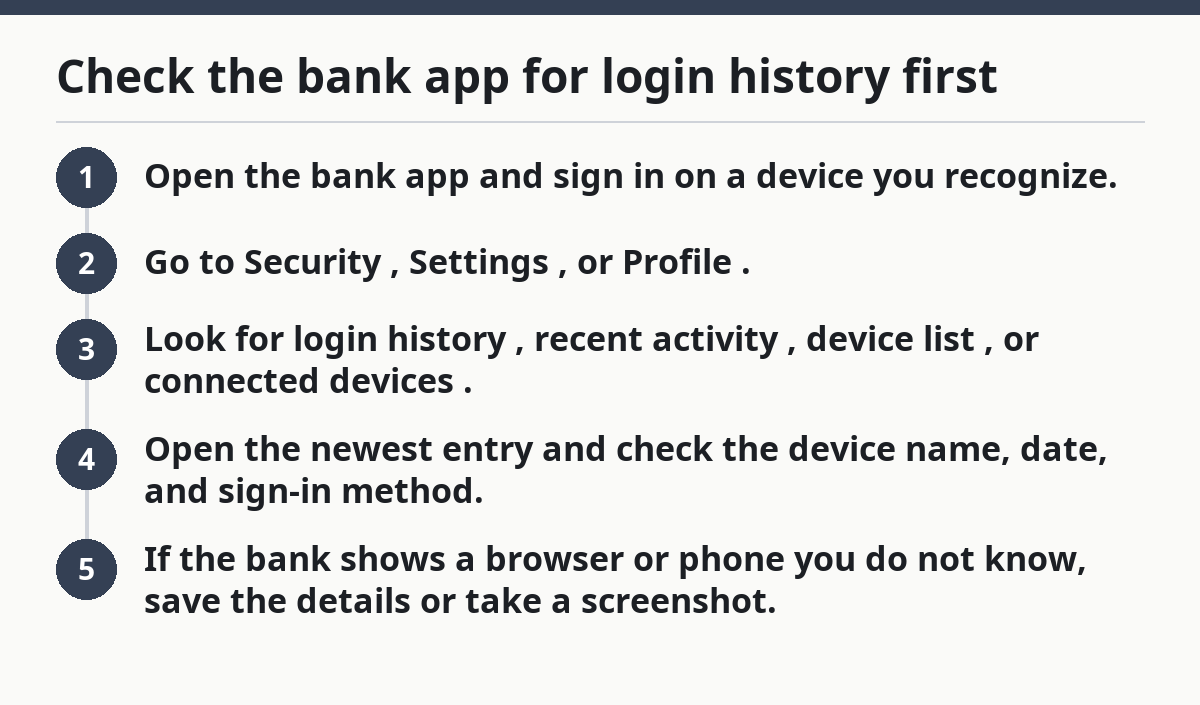
Check the bank app for login history first
Looking for How Teens Can Check Whether a Teen Bank Login Was Used on a New Device? Begin with the place that records recent sign-ins, since that is where a new device usually shows up first, often with a time stamp, device name, or location.
- Open the bank app and sign in on a device you recognize.
- Go to Security, Settings, or Profile.
- Look for login history, recent activity, device list, or connected devices.
- Open the newest entry and check the device name, date, and sign-in method.
- If the bank shows a browser or phone you do not know, save the details or take a screenshot.
You’ll know this step worked if you can see a list of recent sign-ins, not just a balance screen. Some banks show only the last few logins; others keep a longer history, such as the last 30 days or the most recent device sessions. If your bank hides this screen, keep going; the trail may sit under security alerts instead. FDIC
The strongest clue is not just “a login happened.” It is whether the login came from a new device or a device you do not recognize. A bank may label it as a phone model, a browser, or simply “unknown device.” That little label can be the crack in the door.
Where to find the device list and session history
Every bank puts this in a slightly different spot, and that makes people miss it. You are not hunting for a special hacker screen; you are looking for the menu that shows where your session is active right now.
- Open Security settings or Account security.
- Look for device list, active sessions, trusted devices, or remembered devices.
- Tap each entry to see the device type, last access time, or location.
- Check whether the session is marked as current or recently used.
- Compare each device to the ones you own.
If the app lists a device you’ve never used, that matters even if no money moved. A login from a new device can be harmless if it was you on a new phone, but it can also mean someone else got in. FTC
A few banks use labels like “iPhone,” “Android,” or “Chrome on Windows.” Others show a partial IP address or city. That is enough to spot a mismatch. If the bank only shows the current device and nothing else, use the notification history or the browser version of the site. Sometimes the clue is hiding in plain sight.
What should a teen look for in login notifications?
Look for a new device alert, a new city, a new browser, or a sign-in time you do not recognize. A login notification is often the easiest proof that the bank noticed a fresh session.
Open the bank’s alerts or messages section and scan for these clues:
- “New device signed in”
- “New login from a browser”
- “Password changed”
- “Trusted device added”
- “Security settings updated”
If the bank sends email or push alerts, check the exact time. A sign-in at 2:14 p.m. that lines up with your own use is a good sign. A notification at a time you were asleep, in class, or nowhere near the app is not.
Some banks send alerts only after you turn them on. If you never enabled login alerts, the bank may still have login history, but it may not warn you in real time. So you may need to check the app itself, not just your inbox. NIST
If you see a login alert you did not expect, don’t brush it off because “nothing looks missing.” A fresh session can stay active until you end it.
How do you tell a real new device from a normal login?
A real new device is one the bank has not seen before, or one it has not marked as trusted. A normal login usually shows the same phone, same browser, or the same remembered device that appears every time.
Here is the difference that matters:
- Known device: your own phone, tablet, or laptop shows up by name or model.
- New device: the app says it is new, unrecognized, or not trusted.
- Same device, new browser: the bank may treat Chrome, Safari, and the app as separate sessions; if you are unsure, check the bank’s help pages or ask support.
- Shared device: a school Chromebook or family computer can create extra sessions even when no one meant harm.
A lot of teens get tripped up here. Signing in on a new phone after upgrading is normal. Logging in on the family desktop for a one-time transfer can also create a separate session. What should stand out is a device you never used, a login at an odd hour, or a place that makes no sense. That odd-ball mismatch is usually the giveaway.
Bank apps vary. One bank may keep a trusted device for months. Another may make you log in again after a few days or after clearing cookies. That is not the same thing as a suspicious login. The security screen should help you tell the difference.
What to do if a device looks unfamiliar
If a device looks unfamiliar, sign it out, change the password, and review every security setting that can keep the session open. Do this from a device you trust, not from the one you don’t recognize.
- Open the suspicious device entry.
- Choose Sign out, Remove device, or End session if the bank offers it.
- Change the password in Security settings.
- Review recovery email, phone number, and login alerts.
- Check for linked cards, transfers, or payee changes.
You should see the suspicious session disappear from the device list after you sign it out. If the bank only lets you remove one device at a time, repeat the step for every unknown entry.
A quick password reset helps only if it forces a fresh login. Some banks end old sessions when the password changes; others do not. That means a password change is a good move, but it is not always enough by itself. Bit of a trap, honestly.
If you share the device with a parent, guardian, or sibling, tell them before you remove everything. A shared tablet can make the device list messy, and you do not want to sign out the wrong person by mistake.
Can a teen sign out of all devices at once?
Yes, many banks let a teen sign out of all devices at once, but the option may sit under security settings instead of the main menu. It often appears as log out of all devices, end all sessions, or remove trusted devices.
This is often the fastest cleanup when you do not know which session is bad. It cuts off every active login, which means you may need to sign in again on your own phone afterward. That extra step is worth it if you see more than one strange device or if the session list is unclear.
Use this route when:
- several devices look unfamiliar
- the bank shows a browser you never used
- you suspect someone knows the password
- you can’t tell which session is yours
The downside is simple. You may lose access on every signed-in device, including a laptop you use every day. That can be annoying, but it is better than leaving a mystery session alive.
After you check the login, do an account security review
Once you’ve checked the login history, review the rest of the security page so you don’t miss a second door. A strange login is one warning sign; a changed email, phone, or transfer method can be the one that matters most.
Open these items one by one:
- password
- recovery email
- phone number
- trusted devices
- security questions
- login alerts
- linked external accounts
Look for anything that was changed without your knowledge. A teen might focus on the login history and stop there, but a bank app can keep multiple ways into the same profile. If a recovery email changed, someone may still be able to get back in later.
This is also the right time to confirm that alerts are on. If your bank offers login notifications, turn them on so the app tells you when a new device signs in. Then you do not have to check manually every day. For more on keeping a teen banking setup in shape, see the hub page on Teen Banking Account Safety and Access.
Common mistakes that hide a new-device login
Check once, see nothing obvious, and you can still miss a session that is buried in a second menu or hidden inside the browser version of the bank site.
The most common mistakes are small:
- checking only the balance screen and never opening Security
- looking at email but not the in-app login history
- confusing a password change with a full sign-out
- forgetting that a browser session can be separate from the app
- skipping the device list because it sounds technical
Each mistake costs time. It can also leave a stranger logged in while you think the issue is over. A bank may keep active sessions until you remove them, even if you changed the password.
The fix is boring but effective: check the app, check alerts, check devices, then change the password if anything looks off. If the bank offers a device list and a session list, use both. They are not always the same screen.
Two solid references can help you understand the terms banks use: the FDIC consumer pages on online banking safety and NIST guidance on password and account protection. Those sources won’t show your teen’s login history, but they do explain why session control matters.
What if the bank app doesn’t show device history?
If the bank app doesn’t show device history, use login alerts, browser sessions, and the bank’s support line to confirm whether a new device signed in. Not every bank gives the same level of detail, and some hide the full history from the mobile app.
Try this order:
- Check email and push alerts for sign-in notices.
- Open the desktop site, not just the app.
- Look for active sessions or remembered devices.
- Use the bank’s secure message center or support number, and follow the bank’s published help steps or ask a representative what they can confirm.
- Ask whether they can tell you if a new device was added.
You’ll know you’ve made progress when the bank can confirm whether the login was from a known device, a fresh browser, or a new phone. If support can’t say much, ask what the app should show after a new sign-in and where the device list lives.
Some banks keep limited session records for privacy or design reasons. That means the answer may be “no history shown” even when a login happened. In that case, the absence of a list is not proof that nothing happened. It just means you need to rely on alerts and account security review.
What should a teen do if a device looks unfamiliar?
A teen should sign it out, change the password, and check login alerts and recovery info right away. If the bank lets you end the session from the device list, do that first from a device you trust. Then review recent transfers and linked contact details so the same person can’t get back in.
Can a teen sign out of all devices at once?
Yes, many banks let a teen end all active sessions at once, but the option is usually buried in security settings. That is the cleanest move when more than one device looks strange. Expect to log back in on your own phone afterward, because the sign-out usually clears every session.
Does changing the password remove old devices automatically?
Sometimes it does, and sometimes it doesn’t. A password change may force some devices to log out, but many banks keep existing sessions alive until you remove them in the device list. The safest move is to change the password and then check active sessions again.
Drafted with AI; not yet reviewed by a person.