Last updated: November 21, 2026
Quick Answer: In 3 steps, a teen can usually tell whether a bank app error message comes from the phone, the connection, or the bank: read the exact text, try one basic fix, then check whether the same error repeats. In How Teens Can Read a Bank App Error Message and Know What to Do Next, the fastest starting point is still the simplest one: read the message, refresh the app, and check whether the app needs an update or the bank is having a temporary outage.
Key takeaways
- The exact error text matters more than the red icon or warning sound.
- A weak connection, an old app version, or a phone setting often causes the first failure.
- If the message mentions account maintenance, the bank may be blocking a task on purpose.
- Reinstalling the app is not the first move for every error.
- If the same error keeps showing after basic checks, bank support should hear about it.
What does the error message actually say?
Since a bank app error message usually tells you which part failed, the clue might be in a single phrase such as “try again later,” “service unavailable,” “invalid request,” or “account not available.”
Read the message like a signpost, not a verdict. “Try again later” often points to a temporary outage or a connection issue. “Update required” points to the app version. “Account maintenance” usually means the bank has placed a limit on the account or needs extra review.
So do not guess from the color of the screen alone. A red banner, a pop-up box, and a full-screen block can mean different things. The message is most useful when you copy the exact words before you tap away, because support staff often need that text.
For example, a bank app error message that says nothing about the account, the phone, or the internet is less informative than one that names a specific step. If it names none of those, the safest move is to start with the small checks before you reinstall anything.
How do I tell if it is the phone, the app, or the bank?
You can usually tell by changing one thing at a time and seeing whether the error message changes. That gives you a cleaner answer than guessing from the first screen.
Here is the quickest decision path:
- Read the exact message once, then close and reopen the app. If the message disappears, the problem may have been temporary.
- Check the internet connection. Switch between Wi‑Fi and mobile data, or move to a spot with a stronger signal. If the app loads on one connection but not the other, the issue is likely the network.
- Look for an app update. Open the App Store or Google Play and check whether the bank app has a newer version. If the app was out of date, updating may clear the message.
- Check phone settings. Low storage, disabled data access, or restricted background activity can stop an app from loading screens correctly.
- Read the message for account language. If it mentions maintenance, limits, verification, or unavailable services, the bank may be the source.
- Wait a short time and try again. A temporary outage can clear without any change on your end.
Therefore, this order matters because it saves time. A teen who starts by reinstalling the app can spend 20 minutes on a fix that was never needed. A teen who starts with the connection and update check often gets an answer in a few minutes.
However, the trade-off is simple: the faster the fix, the less certain the diagnosis. If the app works after one small change, you may never know whether the original cause was the network, the update, or the bank’s own system.
Which fixes should I try first?
You should start with the smallest fix, then move to the larger ones only if the error message stays. That keeps you from wiping settings or losing time on a step that may not help.
| Step | What to change | What it can fix | When to stop |
|---|---|---|---|
| 1 | Reopen the app | A brief glitch | If the same message returns twice |
| 2 | Switch connection | Weak Wi‑Fi or mobile data | If one network works and the other fails |
| 3 | Check for an app update | Outdated app version | If the app still shows the same error after updating |
| 4 | Review device settings | Data limits, storage, permissions | If the app still cannot load pages |
| 5 | Sign out only if the message points to account access | Session or account problem | If the bank asks for support |
| 6 | Contact bank support | Account maintenance or outage | If the error repeats for 1 day or more, or the app gives no clear fix |
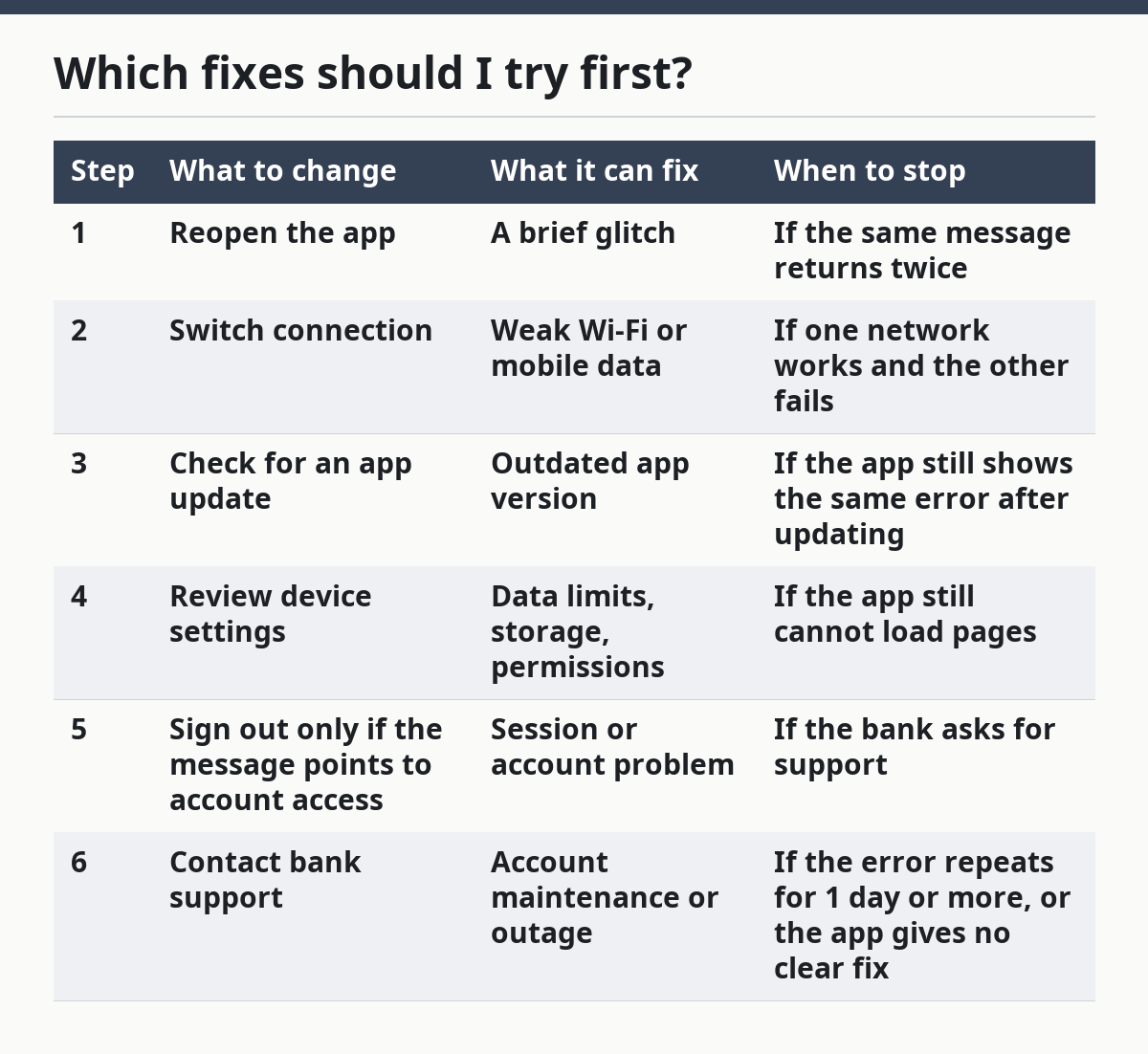
Since the first fix is often the most useful, it costs nothing and takes less than 1 minute. The second and third are the most common next steps because many app errors come from connection trouble or an old build.
Do not jump straight to reinstalling unless the message points to a broken install or the app will not open at all. Reinstalling can take longer, and it does not help if the bank has blocked the account for maintenance.
A good rule is to stop at the point where the problem is clearly not on the phone. If the app works on one network but not another, the phone is probably fine. If the message says the account needs review, the phone is probably not the real issue.
What app update and device settings should I check?
An app update and a few device settings can fix a bank app error message when the app itself is the weak link. This is the part many people skip, even though it is often the quickest real fix after a connection check.
Check the app version in the App Store or Google Play first. If an update is ready, install it and open the app again. A newer version can fix bugs, login trouble, and screens that fail to load after a bank changes its system.
Then check device settings that can block the app:
- Internet access: Make sure the app is allowed to use data on the phone.
- Storage: If the phone is nearly full, apps can fail to load screens or save session data.
- Date and time: If the phone’s clock is wrong, some secure apps may reject the connection; if it keeps happening after you fix the time, contact the bank or the app’s support team.
- Permissions: If the app needs a setting to show alerts or verify identity, blocked permissions can trigger an error.
- Battery saver or low power mode: These can slow app activity enough to break loading.
The exact menu names depend on the phone model, but the idea is the same on most devices. If you are on an iPhone or Android phone, check the app’s settings page and the phone’s general settings page before you call support.
Therefore, updating and checking settings are simple, but they do not prove the bank is not having a problem too. If the bank’s service is down, a perfect phone will still show an error. For general app troubleshooting, Apple Support’s guidance on apps that stop responding and Google Play Help’s troubleshooting steps are both useful references:
- Apple Support: https://support.apple.com/en-us/HT201398
- Google Play Help: https://support.google.com/googleplay/answer/7513003
Since secure apps can also fail when the phone’s date or time is wrong, it helps to compare the phone settings with your carrier or device support page. If the problem persists after that check, use the bank’s help line or a trusted adult for help.
When is it a bank problem instead of a phone problem?
It is more likely a bank problem when the message mentions account maintenance, service unavailability, or a task the bank must approve. That is the point where the app is doing its job by blocking access.
Look for these signs:
- The same error shows on more than one device.
- The app works until you try one specific action, such as a transfer or a balance check.
- The message names maintenance, verification, review, or unavailable services.
- The issue lasts longer than a short interruption.
- The app update and connection checks do nothing.
Since that pattern usually means the bank’s system, not the phone, is the barrier, a teen should not keep changing settings for 30 minutes if the same message appears on two devices. At that point, bank support is the right next step.
This is also the time to save the exact message. If possible, note the time, the action you were trying to do, and whether the problem appeared on Wi‑Fi, mobile data, or both. Those three details help support staff sort out whether the problem is tied to a temporary outage, a specific account rule, or a device issue.
The main thing not to do is keep repeating a blocked action over and over. If the bank is checking the account, repeated attempts can add confusion without fixing anything.
How do I contact bank support with the right details?
You should contact bank support with the exact error text, the time it appeared, and the steps you already tried. That short list gives support a better starting point than “the app is broken.”
Before you call or message, gather these details:
- The exact words of the error message
- The phone type and model if you know it
- Whether the app was up to date
- Whether Wi‑Fi or mobile data was used
- Whether the same error happened more than once
If the bank app has a help or chat option inside the app, use that first. If not, use the bank’s support number or official help page. Do not send passwords, PINs, or one-time codes in a message thread.
A bank support agent may ask you to repeat a step you already tried, such as reopening the app after 5 minutes or checking a setting again. That is normal. The goal is to confirm whether the error is temporary, tied to one account, or linked to the device.
Since this is where a teen should stop trying random fixes, a confirmed account maintenance notice or service issue means more app changes will not help. The next move is to wait for the bank’s instructions. If this topic is part of a bigger teen banking setup, the hub page on Teen Banking Account Safety and Access — The Complete Guide is the better place to start for broader access questions.
What should I not do when an error appears?
You should not reinstall, reset, or keep retrying at random before you know what the error message says. That can waste time and hide the real cause.
Common mistakes include:
- Ignoring the exact wording. Cost: you miss the clue that points to the bank, the phone, or the network. Do this instead: copy the message first.
- Reinstalling too early. Cost: you lose time and may still face the same bank-side error. Do this instead: try update, connection, and settings first.
- Trying the same action many times in a row. Cost: you can create more confusion without changing the cause. Do this instead: pause, check the clue, then change one thing.
- Skipping support when the message is about maintenance. Cost: you keep solving the wrong problem. Do this instead: contact the bank with the exact text.
Therefore, treat the first error as a clue, not a command. The app is not always telling you to “try again” in a helpful way. Sometimes it is telling you to stop and check the account or the connection.
That judgment is not for every case. If the message is vague and the app is still not working after an update and a connection check, support is the next smart move.
What does a bank app error message mean?
A bank app error message means the app could not finish a task, and it usually points to the phone, the connection, or the bank’s system. The exact words matter more than the icon or color. If the message mentions updating, maintenance, or service trouble, that clue usually tells you where to start.
Should I reinstall the app if it shows an error?
You should not reinstall first unless the app will not open or the message points to a broken install. Start with the update check, the internet connection, and device settings because those fixes are faster and less disruptive. Reinstalling can help in some cases, but it is rarely the first move.
When is an error message a bank problem instead of a phone problem?
It is more likely a bank problem when the same error shows on more than one device or the message mentions maintenance, review, or unavailable services. If the app update and connection checks do nothing, the phone is probably not the source. That is the point to contact bank support with the exact message and time.
FAQ
How many basic checks should I do before contacting the bank?
Usually 3: reopen the app, check the connection, and confirm the app is updated.
What if the bank app says “try again later”?
That message often points to a temporary outage or a connection issue. Try once more after a short wait, then check whether the app update or network changed anything.
Can a wrong phone clock cause a bank app error?
Yes, it can. If the date and time are off, some secure apps may reject the connection, so check that setting before you contact support.
When should I stop troubleshooting on my own?
Stop when the same message appears after the basic checks, or when the message clearly mentions maintenance, review, or unavailable services. At that point, the bank’s support team is the right next step.
Drafted with AI; not yet reviewed by a person.