Last updated: November 19, 2026
How Teens Can Check Whether a Teen Debit Card Is Enabled for Tap to Pay
Quick answer: use a 3-point check. To check whether a teen debit card is enabled for tap to pay, look for the contactless symbol on the card, confirm contactless payments are turned on in the teen bank app or website, and test it at a terminal that accepts contactless payments. If the symbol is there but taps still fail, the terminal may be the issue.
A teen debit card is enabled for tap to pay if the card has the contactless symbol and the card settings in the teen bank app or website show contactless payments turned on. If the symbol is there but taps still fail, the problem is often the merchant terminal, not the card.
Key takeaways
- The contactless symbol on the card is usually the quickest clue.
- Card settings matter as much as the plastic card.
- A tap can fail even when the card is fine if the terminal does not accept contactless payments.
- Mobile wallet use is separate from tap-to-pay on the physical card.
- If the card, app, and terminal all look right, the issue is usually a temporary payment glitch or a merchant-side problem.
What does “enabled for tap to pay” mean?
“Enabled for tap to pay” means the teen debit card can make a contactless payment at a merchant terminal that accepts tap payments. The card does not need a separate app feature on the phone for the plastic card to work, but the bank may still show a contactless payment setting in card settings.
That setting matters because some banks let the account holder or parent control whether the card can be used for tap payments. If the setting is off, the card may still work for chip or swipe payments, but tap may fail. A reader who only checks the front of the card can miss that part.
The quickest way to think about it is this: the card, the account settings, and the terminal all have to line up. A teen debit card can look normal, have a card number that works online, and still not be enabled for contactless use. That is why “tap” is not the same thing as “debit card works.”
Two useful standards to know are the contactless symbol and EMV contactless payments. The contactless symbol is the small curved-wave icon on many cards and readers. For general guidance, see EMVCo and the Consumer Financial Protection Bureau for payment-card basics and consumer help.
How do I check the card itself?
You check the card itself by looking for the contactless symbol on the front or back of the teen debit card. The symbol usually looks like four curved lines, like a Wi‑Fi mark turned on its side, and it tells you the card is meant for contactless payment.
Use this 3-step check:
-
Hold the card under a bright light and look near the chip or card brand logo.
You are looking for the contactless symbol, not the chip or magnetic stripe. If the symbol is present, the card is usually built for tap payments. -
Compare the card to a standard contactless card image from the bank’s help pages.
A teen card with no symbol may still work in another way, but tap-to-pay support is less likely. If the symbol is missing, do not assume the card is enabled. -
Check the issue date or replacement status if the card was recently reissued.
Some cards are replaced after damage, and the new card may have different settings. A replacement card can show the symbol but still need activation before tap payments work.
The biggest mistake here is assuming every debit card can tap. That mistake wastes time at the register and leads people to blame the phone or the cashier. The fix is simple: if the symbol is missing, check the card settings before you try again.
Where in card settings do I look?
You look in the teen bank app or online banking card settings for contactless payments, tap to pay, or a similar switch. That setting is the clearest sign that the teen debit card is enabled, because the bank controls whether the card can make a contactless payment.
Here is the order that makes the most sense:
-
Open the bank app or sign in on the website.
Go to the teen debit card section, not the general account page. Many banks separate card controls from balance and transfers. -
Find card settings or card controls.
Look for words like contactless payments, tap to pay, tap and go, or card preferences. If the bank shows a toggle, it may be on, off, or hidden behind a security step. -
Check whether the contactless setting is active.
If it is off, turn it on if the account permissions allow it. If the option is not visible, the bank may not offer a user-facing switch and may rely on card type instead. -
Confirm the card is active, not just ordered or pending.
A card that has not been activated cannot make tap payments. This matters after a replacement card arrives in the mail or is reissued in the app. -
Review any parent or guardian controls.
Teen accounts often have extra spending controls. If the adult account holder controls card settings, the teen may see the card but not the contactless toggle.
This is the step that many generic guides skip. The card may be enabled at the bank level but blocked by account controls. If the teen app shows nothing about contactless payment, that is not proof the card is off; it may just mean the bank hides that control. For a broader look at control settings, see Teen Debit Card and Spending Controls — The Complete Guide.
What should I check at the merchant terminal?
You should check whether the merchant terminal supports contactless payments, because a tap can fail even when the teen debit card is enabled. The terminal needs the contactless symbol too, and some older readers only take chip cards or magnetic stripe cards.
The easiest clue is the reader itself. If the terminal shows the same contactless symbol as the card, tap payment is usually supported. If the cashier says “insert the card” every time, the terminal may not be set up for tap-to-pay or may be using a fallback mode.
A simple comparison helps:
| Check point | What it tells you | What to do |
|---|---|---|
| Contactless symbol on the card | The card is designed for tap payments | Try tap-to-pay first |
| Contactless setting in card settings | The bank has allowed or blocked tap use | Turn it on if available |
| Contactless symbol on the terminal | The merchant can accept a tap payment | Hold the card near the reader |
| Chip-only terminal | Tap will not work there | Insert the card instead |
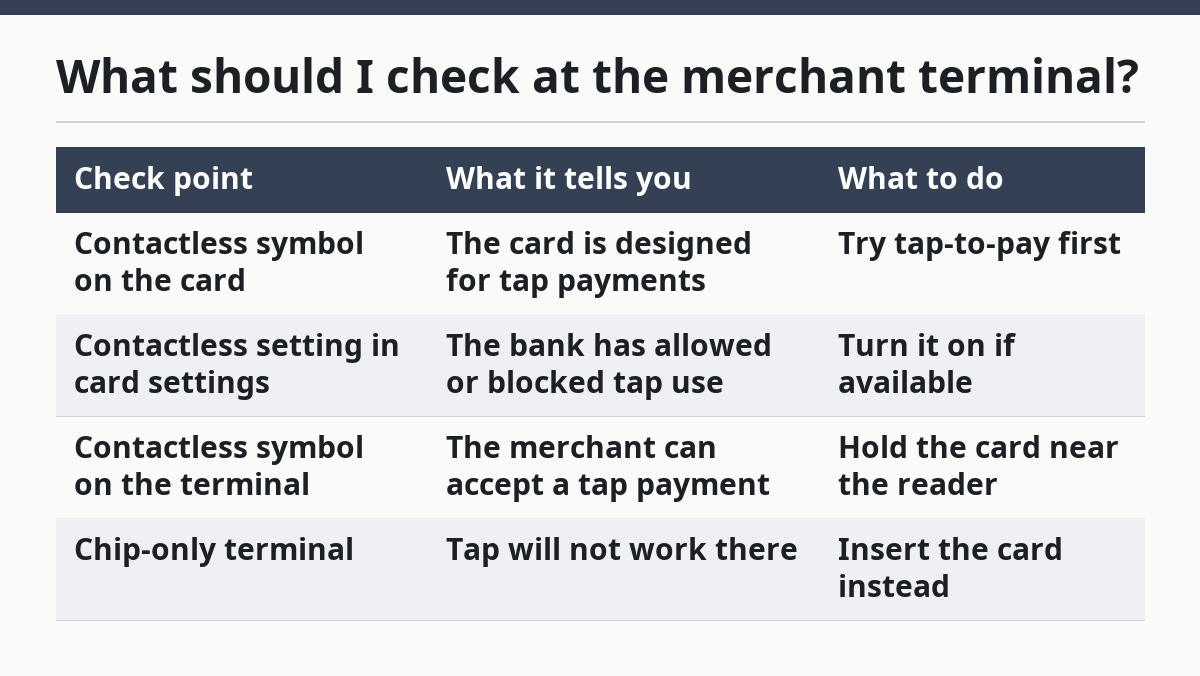
A failed tap at one store does not prove the teen debit card is broken. It may only mean the terminal is not ready. That is why it helps to try a second merchant terminal before asking the bank to replace the card. For more on card types and checkout behavior, see What a Teen Debit Card Can Do at Checkout and How to Read Debit Card Symbols.
How do I tell tap-to-pay trouble from a card problem?
You tell the difference by checking three places in order: the card, the card settings, and the merchant terminal. If all three look right and tap still fails, the problem is more likely to be a temporary issue with the transaction or terminal than with the teen debit card itself.
A card problem usually looks like one of these: no contactless symbol, contactless turned off in card settings, or the card has not been activated. A terminal problem usually looks like this: chip works, tap does not, and the reader either lacks the symbol or the cashier says contactless is unavailable.
A mobile wallet issue is different again. If the teen is trying to pay with a phone instead of the physical card, the wallet setup matters, not just the plastic card. That is a separate path from checking whether the teen debit card is enabled for tap to pay.
If you want a quick rule, use this:
- Card symbol missing = likely card issue
- Card settings off = bank control issue
- Reader not contactless = merchant issue
That rule is not perfect, but it stops most dead ends. It also keeps the teen from repeating the same failed tap five times at the checkout line.
What mistakes do people make most often?
The most common mistake is checking only the front of the card and ignoring card settings. That mistake wastes time because a card can have the right symbol and still be blocked in the app. The second mistake is blaming the phone when the problem is really the terminal.
Another mistake is trying tap payments at a reader that clearly does not support them. If the terminal only accepts chip or swipe, a tap will not work no matter how many times the card is held near it. That can lead to delay and confusion at checkout.
A third mistake is forgetting that teen accounts often have extra controls. A parent or guardian may have turned off contactless payments without changing anything else about the account. In that case, the card can still work for other types of purchases, which makes the failure feel random.
The fix is to follow the same order every time: symbol, settings, terminal. That 3-part check is faster than guessing, and it keeps the question focused on the right thing.
When should I ask the bank for help?
You should ask the bank for help when the card has the contactless symbol, the card settings show tap payments as enabled, and the merchant terminal clearly supports tap to pay, but the card still fails. That pattern points to an account or card issue that only the issuer can see.
A bank can check whether the card is active, whether contactless is blocked, and whether there is a card control that does not show clearly in the app. If the card was recently replaced, reissued, or reported lost, that matters too. The old card and the new card may not behave the same way.
Do not ask for help too early if the real issue is a reader that does not accept contactless payments. That sends you in the wrong direction and can lead to a needless replacement card. If a chip payment works and the terminal lacks the contactless symbol, the bank is probably not the first stop.
For a wider view of teen card controls and account access, the hub guide on Teen Debit Card and Spending Controls — The Complete Guide is the better next step after this check. You can also compare it with How Teen Bank Apps Handle Card Controls if the app shows more than the card itself.
Why is my teen debit card tap to pay not working?
Your teen debit card tap to pay is usually not working because one of three things is wrong: the card has no contactless symbol, contactless payments are turned off in card settings, or the merchant terminal does not support tap payments. A card can still work for chip or swipe even when tap fails, so the failure does not always mean the card is bad.
If the card is active and the terminal is contactless, check the app or website for a contactless payment setting. If that setting is not visible, the bank may control it in a different place or may not show it to the teen user. In that case, the account holder may need to check it.
How do I know if my card supports contactless payments?
Your card supports contactless payments if it shows the contactless symbol and the bank’s card settings do not block tap-to-pay use. The symbol is a fast clue because it is printed on the card itself, usually near the chip or brand mark.
If you are unsure, compare the card with the bank’s help pages or card guide. A missing symbol is a strong sign that tap payments are not supported on that card, even if the card still works in other ways. EMVCo’s contactless overview is a useful reference point for what the symbol means.
What should I check before trying tap to pay again?
You should check the card, the card settings, and the terminal before trying again. First, look for the contactless symbol. Second, confirm the teen debit card is active and contactless payments are on in card settings. Third, make sure the merchant terminal shows the contactless symbol or is known to accept tap payments.
If all three checks pass, try a different terminal or ask the cashier whether contactless is turned on for that register. That short list catches the most common reasons tap fails without sending you in circles.
Drafted with AI; not yet reviewed by a person.