Last updated: November 20, 2026
Key Takeaways
- A real login alert usually comes from your bank’s app, text, or email and matches a sign-in you recently made.
- Check it by comparing the alert with your own recent sign-in and opening the bank’s app, not the message itself.
- The most useful details are the device name, the time, the channel, and whether two-factor authentication happened.
- A real alert can still feel wrong because banks send alerts for forgotten sign-ins, app updates, or phone restarts.
A teen bank account login alert can be real even if you didn’t tap anything. This guide to How Teens Can Know If a Teen Bank Account Login Alert Means a Real Sign-In explains how to check the alert details, spot an unrecognized device, and decide what to do next.
Quick answer: real alert or fake one?
A real login alert usually comes from your bank’s app, text, or email and matches a recent sign-in you actually made. A fake alert often pushes you to click a link, call a number, or “verify” a password fast. According to the FTC, phishing messages often try to create urgency and direct you to a fake login page.
Picture this: you’re holding your phone, and a bank notification says your teen bank account was signed in from a device you don’t know. The message looks urgent, and the link looks official. Your next move matters more than the alert itself.
Here’s the catch: the message alone is not enough. Check device, account activity, and session timing before you trust it. The FTC and CISA both recommend verifying security alerts through the official app or website.
- Was there a sign-in you just made?
- Does the alert use the bank’s normal wording?
- Does it ask you to tap a link or share a code?
- Does the timing match the minute you logged in?
A bank notification that names the exact app or account and shows the same timestamp as your own login is a better sign than a random message. If the wording feels off, treat it as suspicious until you confirm inside the official app; if you are unsure, consult your bank directly or another trusted professional source.
How do I check a teen bank account login alert?
You check it by comparing the alert to your own recent sign-in and by opening the bank’s app, not the message itself.
Picture this: you get an alert at 7:12 p.m., but you were in class with your phone off. That gap is the first clue. A real login alert should line up with your own session timing, your usual device, or a bank security alert you can see again inside the app.
Next, open the bank app by typing the name yourself or using your saved app, not by tapping the alert. Then go to account activity, recent sign-ins, or security alerts. Compare the time on the alert with the time shown in the app. Check whether the device listed is yours. Look for a second step like two-factor authentication that you remember completing.
A real login alert usually has plain details: time, channel, and device. An alert that only says “urgent activity” or asks you to act in 10 minutes is weaker and more likely to be phishing. The bank app should be the place where the event is confirmed, not the message thread. CISA says you should verify any unexpected message by using a trusted path, not the link in the message.
A bank notification that appears in the app’s security area is much more trustworthy than an email sent from an unfamiliar address. If the app shows the same event, treat the alert as likely real, but confirm the sign-in with the bank if anything still looks unusual.
What details in the alert matter most?
The details that matter most are the device name, the time, the channel, and whether two-factor authentication happened.
Picture this: one alert says “new sign-in on iPhone,” while another says only “suspicious login.” The first gives you a clue you can check. The second gives you almost nothing. A device label and a clean timestamp are the two strongest signs that the alert is tied to a real sign-in.
Watch for these pieces:
- Device recognition: Does the device name match your phone, tablet, or laptop?
- Session timing: Did the alert arrive right after you signed in?
- App notifications: Did you also see a push alert inside the bank app?
- Security alerts: Does the wording match the bank’s usual warning style?
- Two-factor authentication: Did you enter a code from SMS, email, or an authenticator app?
One detail can fool you. A message can show a familiar device name even when you did not log in, because some banks label devices loosely. That is why timing and channel matter too. A real event usually leaves more than one trace.
If the alert names a device you do not own and the time does not match anything you did, do not brush it off. That combination is a strong reason to treat the alert as a possible security problem, and you should contact the bank if you cannot reconcile it yourself.
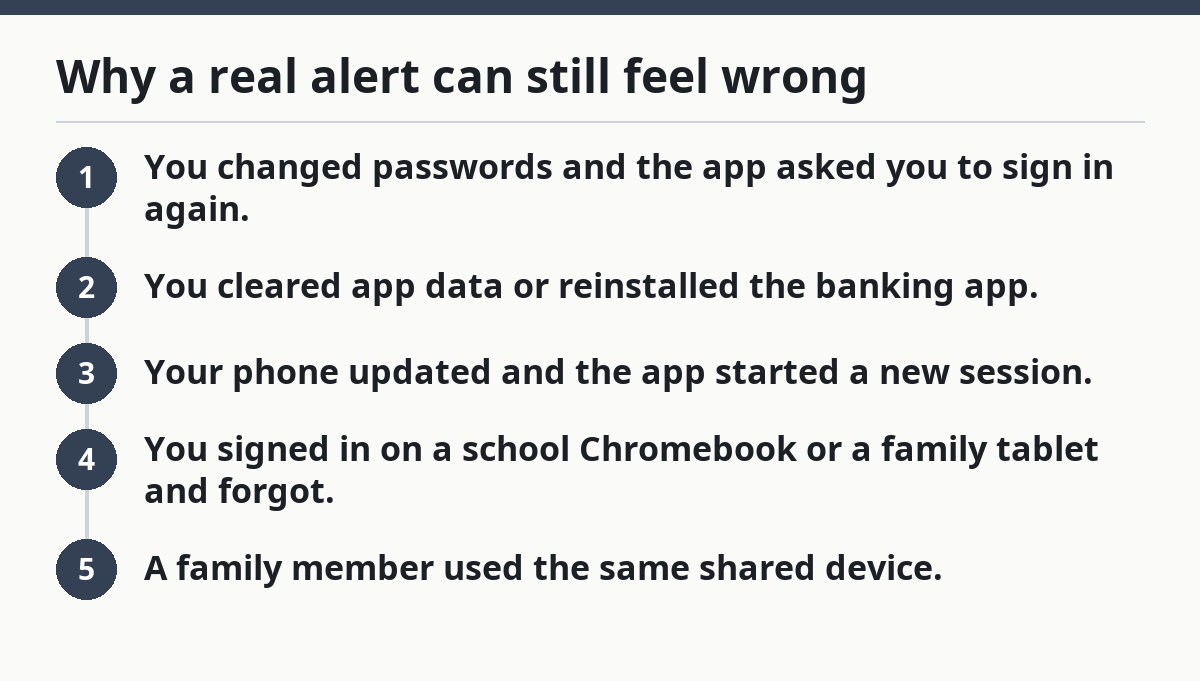
Why a real alert can still feel wrong
A real alert can still feel wrong because banks send alerts for sign-ins you forgot, re-logins after app updates, or sessions that refresh after a phone restarts.
Picture this: you signed in yesterday, closed the app, and now a new alert appears after the phone updates overnight. That can look scary and still be normal. Banks often treat a fresh app session as a new login, even when it is the same phone. The FDIC and major banks note that session resets can trigger repeated sign-ins.
A few common reasons for a false alarm feeling:
- You changed passwords and the app asked you to sign in again.
- You cleared app data or reinstalled the banking app.
- Your phone updated and the app started a new session.
- You signed in on a school Chromebook or a family tablet and forgot.
- A family member used the same shared device.
This is where a bank notification inside the app helps. If the event appears in recent account activity and the device matches something you own, it is probably a real sign-in, not a scam message.
Still, a real alert is not the same as a safe alert. A real sign-in from the wrong device can mean someone else got in. That is why the question is not just “Is the message real?” It is also “Was the sign-in mine?”
What should I do if the login alert does not match anything I did?
You should treat it as a possible account takeover and act from the official app or bank website, not from the alert.
Picture this: you never signed in, but your phone buzzes with a login alert at midnight. Your first job is to stop the guesswork. A mismatch between the alert, your account activity, and your own device means you need to secure the account right away.
Do this next:
- Open the bank app directly and check recent activity.
- Change the password if the bank gives you that option in-app.
- Turn on or re-check two-factor authentication.
- Sign out of other sessions if your bank offers that control.
- Call the number on the back of your card or the bank’s official site, not the alert itself.
- Watch for a second alert, a password change, or a transfer you do not recognize.
The catch is simple: do not use a phone number or link from the alert text. A fake alert often tries to pull you away from the bank’s own channel. The bank’s official app or website is the place to confirm the problem. If you are unsure, contact the bank’s fraud team or a trusted adult for help.
If money moved or the bank says the account is locked, contact the bank immediately through official support. Delays can make recovery harder.
Common mistakes that make teens misread alerts
Teens often mistake a normal re-login for a scam, or a scam for a normal re-login, because they check only one clue.
Picture this: the alert looks official, so you assume it is real. Or it looks odd, so you ignore it. Both moves can cost you time, and time matters when the problem is a real sign-in on a teen bank account.
The most common mistakes are these:
- Checking only the sender name: Scammers can copy names. Check the full address or in-app alert.
- Trusting a link in the message: That can send you to a fake login page.
- Ignoring session timing: A real alert has a time stamp you can compare.
- Forgetting shared devices: A family tablet can trigger alerts you did not expect.
- Assuming two-factor authentication means safety: A code can still be used by the wrong person if they already have part of your login.
A better habit is to start inside the bank app every time. If the alert is real, you should be able to find the same event in account activity or security alerts. If you cannot, the message may be the problem, not the account.
That habit is worth more than speed. A 30-second check in the app beats a rushed tap on an unknown link.
How teens can tell a real sign-in from a bank phishing message
Teens can tell the difference by checking whether the message is asking for action that the bank would not ask for in that way.
Picture this: one message says “We detected a login from a new device” and another says “Verify your password now or lose access.” The first may be a normal alert. The second is designed to create panic. Real bank security alerts usually point you back to the bank’s own app or site, not to a random form.
Use this split:
- Real alert signs
- Shows recent activity you can confirm in the app
- Matches your own sign-in time
- Uses the bank’s normal alert style
-
May mention two-factor authentication or a device you recognize
-
Phishing signs
- Uses pressure words like “immediately” or “final warning”
- Asks for a password, code, or card number in reply
- Links to a login page that looks close but not exact
- Comes from an odd address or a text thread you never used before
The best check is still the same: stop at the alert, then open the bank app yourself. If the alert is real, it will still be there in the bank’s own security area.
For more help with account safety basics, the hub guide on teen banking account safety and access fits this topic well.
What if the alert is real but the login was not mine?
If the alert is real and the login was not yours, the account needs a security check, even if no money is missing.
Picture this: the app confirms a sign-in from a device you do not recognize. That means the issue is not the message anymore. The issue is access. A confirmed unrecognized device deserves a fast response, even if the balance still looks fine.
Use this checklist:
- Change the password from the bank’s official app or website.
- Sign out of other sessions if that option exists.
- Check for new payees, transfers, or profile changes.
- Review two-factor authentication settings.
- Contact the bank through the number on the card or official site.
- Save screenshots of the alert and the activity page.
A real login alert can be the first warning before money moves. That is why bank notifications matter. They give you a chance to act before the damage grows.
If you share a device with family, tell the bank that too. Shared phones, tablets, and browsers can leave messy logs, and the bank may need that detail to sort out the sign-in history.
How can I tell if a login alert is real?
A login alert is more likely real if it appears in the bank’s own app, matches a sign-in you actually made, and shows a device or time you recognize. A message that only lives in email or text is weaker proof. If the alert pushes you to click a link or share a code, treat it as suspicious until you confirm it inside the official app.
What should I do if I get a login alert I do not recognize?
You should open the bank app directly, check recent activity, and contact the bank through its official number if the login still does not match anything you did. Do not tap the link in the alert. If the sign-in is real and unrecognized, change your password and look for other account changes right away.
Do login alerts always mean someone got into my account?
No, a login alert does not always mean someone got into your account. It can come from your own sign-in, a fresh app session, or a re-login after a phone update. The alert matters most when the device and timing do not match your own actions.
Drafted with AI; not yet reviewed by a person.