Last updated: November 20, 2026
Quick answer: Teens can turn on purchase, ATM, and transfer notifications in a teen banking app in about 5 minutes if the bank supports push alerts. Teen banking app notifications are the fastest way to spot a purchase, ATM withdrawal, or transfer as it happens. Turn on push alerts first, then add text alerts if the bank offers them. The steps below show where to find alert categories, what to choose, and what to do if a phone stays quiet.
Key Takeaways
- Start with purchase, ATM, and transfer alerts before you worry about extra settings.
- Push alerts usually live inside the teen banking app; text alerts often need a phone number on file.
- If a teen sees card swipes but not cash withdrawals, the alert category may be off, not broken.
- Some banks split spending, ATM, and transfer activity into different menus, so one switch is not enough.
- If alerts stop, check phone notifications, app permissions, and whether the debit card is still linked.
What banking app notifications should a teen turn on first?
A teen should turn on purchase, ATM, and transfer notifications first because those three alert types catch the money-moving moments that matter most. Picture this: you’ve just used a debit card at a store, pulled cash from an ATM, and sent money to a friend, but you only want one quick check on your phone after each move.
That setup gives the cleanest view of spending activity without flooding the inbox. It also helps if the teen is still learning how a bank app labels transactions, since the alert usually lands faster than the transaction history updates.
Turn these on first: purchase alerts, cash withdrawal alerts, and transfer activity alerts.
A few banks group alerts under names like “card activity,” “payment notifications,” or “cash withdrawal.” Others use plain labels. If the app shows separate choices for push alerts and text alerts, start with push alerts because they arrive on the phone itself and are easier to spot during the day.
Here’s the catch: one bank’s “purchase” alert may include online orders, while another bank splits online shopping from in-store card swipes. That matters because a teen can think alerts are on when only half the spending is covered. Read the category name, not just the toggle.
How do teens turn on notifications in the teen banking app?
Teens turn on notifications by opening the bank app, finding alerts or notification settings, and choosing the categories tied to the debit card and transfer activity. Picture this: you’re logged in on your phone, staring at a menu with three different settings pages, and you just want the app to tell you when money leaves the teen account.
Use the app itself first. If that does not work, check the parent or guardian side, since some teen banking setups let an adult control the alert settings for the linked debit card.
The goal: get the app to send a real-time notice, not just show a transaction later in the ledger.
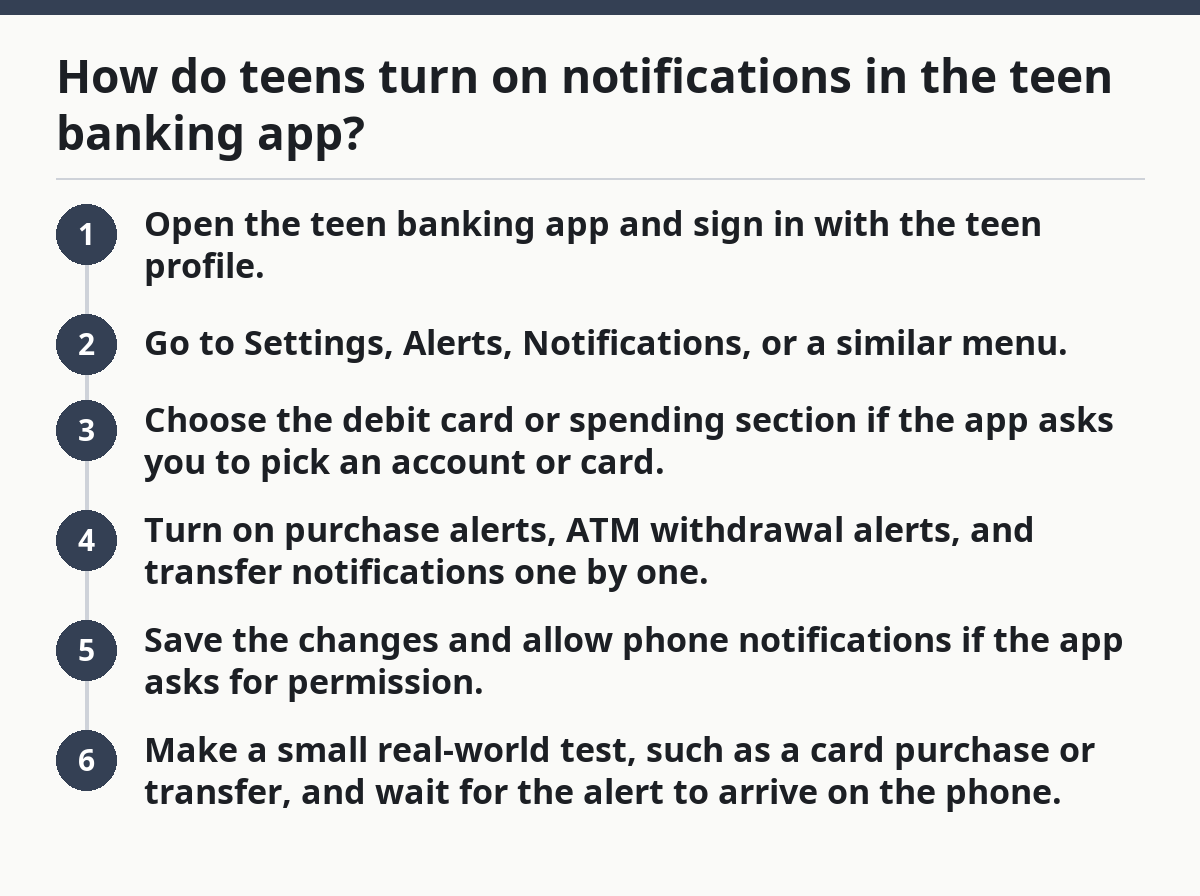
- Open the teen banking app and sign in with the teen profile.
- Go to Settings, Alerts, Notifications, or a similar menu.
- Choose the debit card or spending section if the app asks you to pick an account or card.
- Turn on purchase alerts, ATM withdrawal alerts, and transfer notifications one by one.
- Save the changes and allow phone notifications if the app asks for permission.
- Make a small real-world test, such as a card purchase or transfer, and wait for the alert to arrive on the phone.
If the app offers both push alerts and text alerts, set up push alerts in the app first, then add texts only if the bank supports them for the teen profile. Texts can help when app notifications get buried, but they depend on the right phone number being saved in the profile. Some banks also require the phone to allow SMS from short codes. That can take a minute to confirm.
The quickest route is usually the search bar, if the app has one. Type “alerts” or “notifications” and jump straight there.
Where do purchase, ATM, and transfer alerts live in the menu?
Purchase, ATM, and transfer alerts usually sit under alert categories inside the bank app, but the exact path changes by bank and phone model. Picture this: you’re on an iPhone or Android device, and the app has four menus that sound almost the same—Settings, Security, Alerts, and Notifications.
The bank may separate spending activity from transfer activity, and ATM cash withdrawals may sit with card controls instead of alerts. That is normal. It is also why a teen can think notifications are missing when they are just in the wrong submenu.
Here are the places to check, in order:
- Notifications or Alerts: the usual home for push alerts.
- Card Controls or Debit Card: often where purchase and ATM settings live.
- Transfers or Payments: where person-to-person transfer alerts may be stored.
- Profile Settings: sometimes where the phone number for text alerts sits.
- Parent or Guardian Controls: common in teen banking apps tied to a linked adult profile.
A helpful clue is the wording on the toggle itself. If it says “cash withdrawals,” that usually means ATM activity. If it says “card purchases,” that covers swipes and chip transactions, and sometimes tap-to-pay. If it says “money sent,” that is likely transfer activity, not card spending.
Don’t assume one switch covers everything. In a lot of banking apps, turning on spending alerts does not turn on ATM withdrawal notifications. That missing piece is what makes a teen think the app is broken. It usually isn’t.
What should teens do if the phone stays quiet?
If the phone stays quiet, the teen should check app permissions, phone notifications, and the alert category before blaming the bank app. Picture this: the right switch is on, the debit card was used, and still no alert shows up. That usually means the phone or the category is blocking the message.
Start with the phone settings, because the app cannot push alerts to a phone that has notifications turned off for that app. Then check whether the bank app is allowed to send banners, sounds, and lock-screen alerts.
Most common fix: turn on phone notifications for the banking app itself.
Use this quick check list:
- Open the phone’s settings and find the banking app.
- Make sure notifications are allowed.
- Check whether the app has permission to show on the lock screen.
- Return to the bank app and confirm the correct alert category is enabled.
- Look for a saved phone number if text alerts were chosen.
- Make a small test transaction if the bank allows one.
A second issue is timing. Some banks send alerts only after the transaction posts, while others send them the moment the card is used. That delay can be short or long depending on the bank’s system, the merchant, and the type of transfer. A purchase at a store and a card-not-present online order may not behave the same way.
The trade-off is simple: more alert categories mean better visibility, but also more phone pings. A teen who turns on every setting may get noise from low-value buys, cash withdrawals, and transfer notices all day. Some people want that. Others do not. Pick the alerts that match the money moves you actually want to watch.
Push alerts or text alerts: which works better in a teen bank app?
Push alerts are usually better for a teen banking app because they show up on the phone faster, while text alerts are better as a backup if the bank supports them. Picture this: you’re out with friends, the app is installed, and you want a notice the moment a debit card purchase or ATM withdrawal happens.
Push alerts live inside the app and on the phone’s notification tray. Text alerts go by SMS to a saved number. Both can help, but they are not the same thing.
Push alerts are easier to spot.
Text alerts can help if the app is closed.
If the teen keeps notifications on and checks the phone often, push alerts are enough for most setups. If the teen misses app banners or switches phones often, text alerts can fill the gap. Some banks also let a parent or guardian receive the same message, which can be useful for transfer activity and cash withdrawal notices.
But texts have drawbacks. They can be delayed by carrier issues, filtered by the phone, or limited by the bank’s message rules. Push alerts can fail too if app permissions are off. That means the strongest setup is not “one or the other.” It is checking both and making sure the alert type matches the event.
For a teen who mainly wants to track debit card spending, push alerts are the cleaner choice. For a teen who wants a second trail for transfers, texts can add a backup line. The better move is the one that actually reaches the phone in under a minute.
What mistakes make teen banking app notifications miss purchases?
The most common mistake is turning on the wrong alert category, which leaves purchase, ATM, or transfer activity untracked even though “notifications” looks enabled. Picture this: the teen sees a toggle for alerts and assumes everything is covered, but the bank split the settings into separate buckets.
Another mistake is forgetting the phone permissions. A banking app can be set up correctly and still stay silent if the phone blocks notifications. That is especially common after a phone update, a new device, or a reinstalled app.
A silent app is not always a broken app.
Watch for these setup errors:
- Turning on only generic alerts, not card-specific ones.
- Missing the ATM withdrawal category because it sits under debit card settings.
- Saving the wrong phone number for text alerts.
- Assuming transfer notifications also cover card purchases.
- Skipping the permission prompt when the app first asks for notification access.
There is also the timing problem. A teen may expect an alert right away, but some banks send it after the purchase settles or after a transfer clears. That can make the system look late instead of missing. If the app shows a pending transaction, the notice may still be on the way.
If the bank app has a demo alert or test message feature, use it. If not, make a small card purchase and watch for the alert path from start to finish. That one check is better than guessing through menus for 20 minutes.
How this fits with the bigger teen banking safety setup
Notifications are only one piece of teen banking safety, but they are the easiest piece to set up in 10 minutes or less. Picture this: the teen can see purchases, ATM withdrawals, and transfers on the phone, while a parent or guardian uses the same app to track the linked debit card.
That is why this page belongs with the larger guide on teen banking account safety and access. Alerts do not replace card controls, spending limits, or login review. They simply make money movement visible fast enough to act on.
One thing to keep straight: this page is about bank app notifications, not login activity alerts and not daily spending limits. Those are separate tools with separate menus. If a teen only wants to know when money moves, purchase, ATM, and transfer alerts are the right starting point. If the goal is broader safety, the alert setup should sit beside the rest of the teen banking controls.
A good rule is to review the notification settings after any major change: a new phone, a new debit card, or a phone number update. A bank app can keep its old settings in one place and lose phone permission in another. Checking both takes less than 5 minutes and saves a lot of confusion later.
Which banking alerts should teens turn on first?
Purchase, ATM, and transfer alerts should come first because they catch the main ways money leaves a teen banking app. Those three settings cover card spending, cash withdrawals, and money sent to other people. After that, a teen can decide whether balance notices or other categories are worth the extra pings.
Can teens get notifications for ATM withdrawals?
Yes, teens can often get notifications for ATM withdrawals if the bank app has a cash withdrawal or ATM alert category. The exact label changes by bank, and sometimes it sits under debit card settings instead of alerts. If the phone stays silent, the first thing to check is whether that specific category is turned on.
Why would a bank app stop sending alerts?
A bank app can stop sending alerts if phone notifications are turned off, app permissions changed, or the wrong alert category is selected. Text alerts can also fail if the saved number changed or the bank does not support that message type for the teen profile. A phone update or app reinstall can shift settings too.
Drafted with AI; not yet reviewed by a person.