Last updated: November 20, 2026
Key Takeaways
- If the old phone still appears in the app, remove linked access and sign-in sessions, not the hardware.
- Sign out the old device, then check the device list and close any leftover sessions.
- If the old phone is lost, remove access from the bank side right away.
- After the old device is gone, clean up the remaining login trail.
An old phone or tablet can stay linked to a teen bank account after an upgrade, and that leaves a live login session behind. How Teens Can Remove an Old Device from a Teen Bank Account starts with the bank app, not the phone hardware. The fix is to sign out the old device in the bank app, then check linked devices, login sessions, and two-factor authentication settings. The steps below show what to tap, what to look for, and what to do if the old device is lost.
What “remove the old device” really means
If you still see the old phone in the bank app, you’re not cleaning up the hardware — you’re cutting off linked devices and login sessions. That matters because a device can stay signed in for days or months, depending on how the app handles authentication.
Picture this: you’ve moved to a new phone, but the old one still opens the bank app without asking for a password. That’s the part to fix first, and it usually takes under 5 minutes if the app has a device list. If it doesn’t, you’ll use session sign-out and password reset instead.
Here’s the catch:
- A deleted app is not the same as a signed-out app.
- A factory reset is not the same as removing access from the bank side.
- A lost tablet may still hold an active session even if you can’t turn it on.
The goal is simple. You want the bank app to forget the old device, close open sessions, and ask for fresh sign-in on anything you still use.
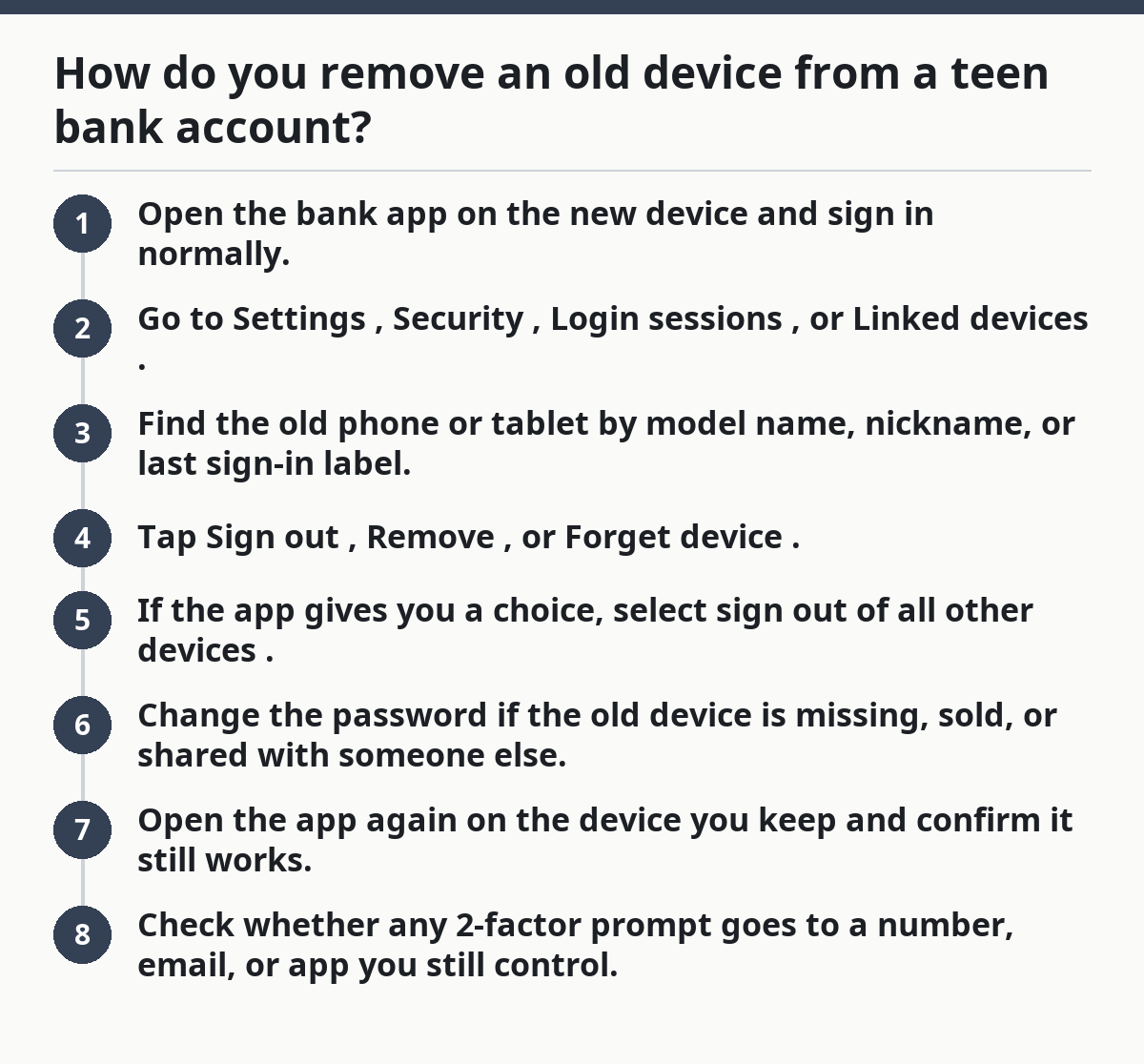
How do you remove an old device from a teen bank account?
You remove it by signing out the old device from the app or website, then checking the device list and closing any leftover sessions. If the app offers a “devices” or “security” menu, that is often the quickest path. If not, you’ll change the password so the old session dies with the next login.
Picture this: you’re on the new phone, the old tablet is still showing up in the bank app, and you want the whole thing cleaned up before it becomes a security hole. Start in the app, not in the phone settings. The bank controls access; the phone only stores the app.
- Open the bank app on the new device and sign in normally.
- Go to Settings, Security, Login sessions, or Linked devices.
- Find the old phone or tablet by model name, nickname, or last sign-in label.
- Tap Sign out, Remove, or Forget device.
- If the app gives you a choice, select sign out of all other devices.
- Change the password if the old device is missing, sold, or shared with someone else.
- Open the app again on the device you keep and confirm it still works.
- Check whether any 2-factor prompt goes to a number, email, or app you still control.
Most banks make the old session disappear once the password changes. Some apps only hide the device from view and leave a token alive until you force a full sign-out.
What if the old phone is lost or you can’t get to it?
If the old phone is lost, you should remove it from the bank side right away and not wait to get the device back. A lost phone can still hold app access if it is opened or if the bank app stayed signed in for 30 days or longer.
Picture this: you’re staring at a missing phone and you only have the new one in your hand. That’s enough to start cleanup. The old device does not need to be in your pocket for you to cut off its session.
Do these in order:
- Sign in on the new device and find the bank app’s security menu.
- Use sign out all devices if the app offers it.
- Change the bank password if the old phone is gone, shared, or borrowed by someone else.
- Review saved devices, trusted browsers, and any recovery email or phone number.
- If the app shows a “recent activity” or “security alerts” page, scan it for anything odd.
A lost phone changes the risk level. If the old device was not protected by a strong lock screen, assume someone could open the app until you close the session. A passcode, fingerprint, or face open helps, but it does not replace bank-side sign-out. If you are unsure what the bank allows, check its help pages or contact support; for broader account safety, a qualified banker or consumer-security professional can help interpret the account steps.
For a broader walkthrough on account safety cleanup, the guide to Teen Banking Account Safety and Access — The Complete Guide can help tie the pieces together without repeating the same fixes here.
Use the device list, session sign-out, and password reset in the right order
The safest cleanup is: device list first, session sign-out second, password reset third. That order keeps you from missing a hidden login while also protecting you from a stale session on an old iPhone, Android phone, or tablet.
Because of that, a visible device list helps you target one phone or tablet at a time. A session sign-out closes the rest. A password reset is the strongest cleanup move because it forces fresh credentials everywhere.
Picture this: the app shows three things — a current phone, an old tablet, and a browser login from last week. If you only remove one of them, the others can stay active. That’s why this section matters more than the quick tap you see first.
Use this order:
- Device list: Remove the old phone or tablet if the app shows named devices.
- Session sign-out: End all other login sessions if the app has that button.
- Password reset: Change the password if the old device is lost, sold, or shared.
- Recovery check: Make sure the recovery email and phone number still belong to you.
- Reopen the app: Sign back in on the device you keep.
A device list helps when the bank app shows a clean inventory. Session sign-out helps when the app uses a browser-style login that does not name the device clearly. A password reset is the strongest cleanup move because it forces fresh credentials everywhere.
One common mistake is removing the app from the old device and calling it done. That leaves the session untouched in many bank apps. Another mistake is clearing the browser cache and assuming the bank forgot the device. It won’t.
Security cleanup after you remove the old device
After the old device is gone, clean up the rest of the login trail. That includes trusted browsers, saved passwords, backup codes, and any linked email or phone number that still points to the wrong place.
Picture this: the old phone is gone from the device list, but the bank app still sends codes to a number you no longer use. That’s not finished cleanup. It’s half-finished access control, and half-finished access control causes lockouts later.
Check these items:
- Trusted browsers: Remove any browser you no longer use.
- Saved passwords: Delete old saved passwords from the old phone or browser manager.
- Recovery contacts: Make sure the bank sends alerts to the right email and number.
- Backup codes: Store them somewhere separate from the old device.
- App permissions: If the app uses notifications, keep them on for the device you still use.
Two-factor authentication deserves a quick check here too. If the old device was the place where codes arrived, the new device may not get in cleanly until you update the prompt method. If the app uses two-factor authentication, make sure the code path still reaches a live phone number, email inbox, or authentication app you can open.
Not even close:
- Do not leave old recovery details in place.
- Do not assume the old tablet is harmless because it sits in a drawer.
- Do not share one login across several family devices if the bank says one user equals one device.
What should you do if the bank app does not show a device list?
If the bank app has no device list, you remove the old device by ending sessions and changing the password. That is the normal fallback when the app is built more like a web login than a device manager.
Because the app may hide the hardware details, you may still see a record of login sessions. A hidden list does not mean the session is gone.
Try this:
- Sign out of the app on the new device, then sign back in.
- Change the password from the app or the bank website.
- Look for “log out of all devices,” “end other sessions,” or “manage access.”
- Review the bank’s help page for the phrase “linked devices.”
- If none of that appears, contact the bank through its official support channel and ask how to close old sessions.
A visible device list gives you a clear target. No device list means you need a stronger reset, which is slower but safer when the old phone may still be active.
Why teens should clean this up after upgrading devices
Teens should clean up old access right after a device upgrade because the old phone often stays trusted for longer than expected. A lot of bank apps treat a familiar device as low friction, which is fine until that device is sold, lost, or shared. In the CFPB’s complaint database, mobile-banking and account-access problems are a recurring issue, which is one reason to keep device access tidy. See the Consumer Financial Protection Bureau and your bank’s own security page for details.
Picture this: you set up your new phone in one evening and never look back. The old one, though, may still open the bank app with a thumbprint or a saved session. That is a quiet risk, not a loud one.
The main reasons to remove it are simple:
- It reduces the chance of someone else opening the app later.
- It keeps alerts and codes going to the right place.
- It makes it easier to notice a real login from a new device.
- It cuts down on confusion when a bank asks you to verify identity.
The best time to do the cleanup is the same day you move to the new phone. If that window has passed, do it before the next statement cycle or payment due date so you know the new setup is clean.
What not to forget after the old device is gone
Do not forget the browser. A bank app can be clean while a laptop browser still sits logged in for months. That’s why device cleanup and session cleanup need to happen together. See the bank’s own security help page and the FDIC consumer resources for account-access basics.
Picture this: the old tablet is removed, but your school Chromebook still opens the bank site without a password. That’s a separate session, and it needs the same attention as the phone.
Check for these leftovers:
- A browser tab left open on a shared computer
- Saved passwords in Chrome, Safari, or Firefox
- Old notification settings on the deleted phone
- A backup email you no longer read
- Any linked smartwatch or tablet that still shows alerts
If the bank offers a “log out everywhere” option, use it after a device upgrade. Then sign in only on the devices you actually use. That keeps the list short and the risk lower.
The one thing I would not skip is the recovery info check. If the bank app sends security codes to a dead number, the old device problem turns into an access problem fast.
Why remove old devices from a bank app?
You remove old devices to stop stale access, lower the chance of someone else getting in, and keep the bank app tied to the phone or tablet you actually use. It also helps you spot strange logins faster because the list only shows current devices.
Can a teen sign out of banking on a lost phone?
Yes, if the bank app lets you sign out other sessions from a new device or the bank website. If that option is missing, change the password right away and check the recovery email and phone number. If the phone is truly lost, use the bank’s support channel to close the session.
What should be removed after upgrading devices?
The old phone or tablet should be removed from the bank app, and any leftover login sessions on browsers should be closed too. Update recovery phone numbers, email addresses, and trusted-device settings so the new device becomes the only one with easy access.
Drafted with AI; not yet reviewed by a person.