Last updated: November 19, 2026
Key Takeaways
- A fake login page often shows clues in the browser address bar, the domain name, or a missing padlock icon.
- Teens should check the full URL, the site name, and the exact domain before entering a password.
- The padlock icon means the connection is encrypted, not that the page is honest.
- Lookalike domains can mimic a real brand while changing one or two letters that are hard to spot quickly.
A fake login page can steal your password before you realize what happened. How Teens Can Spot a Fake Login Page Before Entering Passwords starts with the browser address bar, the domain name, the padlock icon, and any browser warning before you type anything. The steps below show what to trust, what to ignore, and what to do when a page feels off.
The fastest way to tell if a login page is fake
A fake login page often gives itself away in the browser address bar, the domain name, or a missing padlock icon. That is often the quickest check because a page can copy colors, logos, and buttons in minutes, but it cannot easily copy the real website address.
Picture this: you open a login page on your phone, and it looks almost right, but the URL has extra words, a misspelling, or a weird ending like “.xyz” instead of the site you expected. That tiny difference is often the whole scam.
- Look at the full web address, not just the logo. The result you want is the real company name in the domain name, not a lookalike with extra dashes, numbers, or misspelled letters.
- Check for https:// and the padlock icon. A secure connection does not prove the page is real, but a missing lock or a browser warning is a major red flag; if you are unsure, consult a trusted adult or IT professional and check Google Chrome Help or Mozilla Support.
- Compare the page to the address you expected. If you meant to visit a school portal, streaming site, or bank and the address is a different domain, stop.
- Read the page for odd spelling, broken buttons, or awkward text. Scam pages often rush the layout and leave mistakes behind.
- If the page arrived through a message, treat it with extra caution; if you are unsure, consult a trusted adult or IT professional and verify the link using the official site or app, as advised by CISA and the FTC.
These checks can take about 10 seconds once you build the habit. They work on a laptop, tablet, or phone.
What should teens check in the browser address bar?
Teens should check the full URL, the site name, and the exact domain in the browser address bar before entering a password. That is the part scammers try hardest to hide, because the page itself can look polished while the address tells the truth.
Picture this: the page says “Sign in,” the colors match, and the login box sits where you expect it to sit. Then you tap the address bar and see a long address with a real brand name buried in the middle of a fake domain. That is not your site.
The truth is, the browser address bar shows details that the page design cannot fake as easily. On a phone, it may show a shortened address first, so tap it and expand it. On a desktop, read the full line from left to right.
- Check the domain name. A real site uses the brand’s actual domain, not a copycat like “paypaI” with a capital I or “insta-login-secure” with a bunch of extra words; if the address is unclear, consult a trusted adult or IT professional.
- Watch the ending. A site may use a normal ending like “.com,” “.org,” or a country code, but the ending alone does not prove safety. The full domain matters more than the last two letters.
- Ignore the page title if the address looks wrong. Scammers can write any title they want above the page.
- Look for subdomains that try to fool you. “login.example.com” is not the same as “example-login.com.” One may be real; the other may not be.
- Be careful with shortened or redirected links. A short link can hide the real destination until the page loads.
For extra checking, the browser help from Google Chrome and Mozilla Firefox explains how address bars and security indicators work. A page about a login process should never ask you to trust the logo more than the URL.
How do you use the padlock icon without getting tricked?
The padlock icon tells you the connection is encrypted, not that the page is honest. That distinction matters, because a scam page can still use HTTPS and show a lock while stealing the same password you meant to protect.
Picture this: the lock is there, so the page feels safe. Then you remember that a lock only means the connection between your device and the site is private. It does not say who built the site or whether the site is run by the real company.
Here’s the catch: the padlock is a good sign, not a final answer. A fake login page can still have it, especially if the scammer bought a cheap domain and set up basic HTTPS. So treat the lock as one check, not the check.
- Click or tap the lock if your browser lets you. The site details should match the company you expected.
- Use it with the URL, not alone. A lock plus the correct domain is far better than a lock by itself.
- Do not trust a lock on a page you reached from a random message. The link may still send you to the wrong place.
- Notice browser warnings. A warning about an insecure connection, a mismatched certificate, or a suspicious site matters more than a pretty page design.
- Remember this rule: secure does not always mean real.
A plain warning message in the browser deserves more respect than a colorful page. If the browser says the connection may not be private, the right move is to back out.
Why do lookalike domains fool people so often?
Lookalike domains fool people because they borrow a real brand’s shape while changing one or two letters that are hard to spot fast. A teen glancing for 3 seconds may miss an extra hyphen, a swapped letter, or a copied word placed in the wrong order.
Picture this: you see a login page for a game, a school account, or a streaming service, and the name seems close enough. Then you read it slowly and notice the brand is spelled with a zero instead of the letter O, or the domain adds “secure” to sound official. That is the trap.
The best defense is to read the address like a license plate, not a headline. Brand logos can be copied in a few minutes. Domain names are where scammers usually slip.
- Letter swaps: “rn” can look like “m,” and “I” can look like “l” on a small screen.
- Extra words: “login,” “secure,” “verify,” or “support” inside the domain can be bait.
- Hyphen tricks: a site like “brand-login.com” may not belong to the real brand.
- Wrong country or unusual ending: not every odd ending is fake, but it should make you pause.
- Copycat subdomains: the real brand name may appear earlier in the address while the actual domain is something else.
If the address makes you squint, stop. Real login pages usually do not require detective work.
What browser warnings should teens never ignore?
Teens should never ignore a browser warning about an insecure connection, a certificate problem, or a suspected deceptive site. Those warnings exist because the browser spotted something wrong before the page could look convincing.
Picture this: you click a login page and the browser throws up a full-screen warning or a small alert near the address bar. The page may tempt you to continue anyway. Don’t.
The warning may be plain language or technical language, but the meaning is simple: something about this page does not match what the browser expects. That could be a bad certificate, a fake domain, or a page trying to imitate a trusted site.
- Treat red warnings as stop signs. A bright warning is stronger evidence than the page’s own design.
- Do not enter credentials first and investigate later. Once you type a password, the damage can start right away.
- Do not click “advanced” just to get through faster. That can hide the warning without fixing the problem.
- Close the tab and return by a trusted path. Type the known web address yourself or use a bookmark you made before.
- If the site is supposed to be secure, ask why the browser disagrees. Real services usually do not need you to override a warning.
For this topic, Google’s Safe Browsing help and Mozilla’s support pages are solid references for what warnings mean. Browser warnings are not decorations. They are the browser telling you not to trust the page yet.
What should a teen do when the page looks different than usual?
A teen should pause when a login page looks different than usual and compare the address, layout, and wording before typing a password. A redesign can be real, but a surprise change is one of the easiest ways for a phishing page to pass as normal.
Picture this: the site has a new color, a new button placement, or a different logo size. That alone does not prove fraud. But if the page feels off and the address also looks strange, the page has earned suspicion.
The smartest move is to compare the page against a known-good path. Open the service from a bookmark you made earlier, from the official app, or by typing the address yourself. Then compare the two pages side by side if you can.
- Check the spelling of labels and buttons. Fake pages often have awkward English or clumsy spacing.
- Look for missing pieces. A real login page usually has the same fields and help links every time.
- Notice if the page pushes urgency. Messages like “verify now” or “account will close” are pressure tactics.
- Compare the domain again. A normal-looking page with a wrong domain is still fake.
- If the page asks for more than a password, stop. A phishing page may ask for a code, card details, or recovery answers it should not need.
Now, you might be wondering how to make this habit stick. The answer is to slow down at the address bar every single time, even when the page looks familiar.
The one habit that catches most fake login pages
The one habit that catches most fake login pages is stopping before you type and checking the address bar first. That single pause beats speed, because scammers depend on you moving on autopilot.
Picture this: you are tired, the page loads fast, and your thumb is already over the password box. This is exactly when a 5-second check matters most. Read the domain, look for the padlock icon, and notice any browser warning before you type.
A good routine is simple:
- Open the page.
- Read the browser address bar.
- Confirm the domain name.
- Check for the padlock icon and any warning.
- Only then type your username and password.
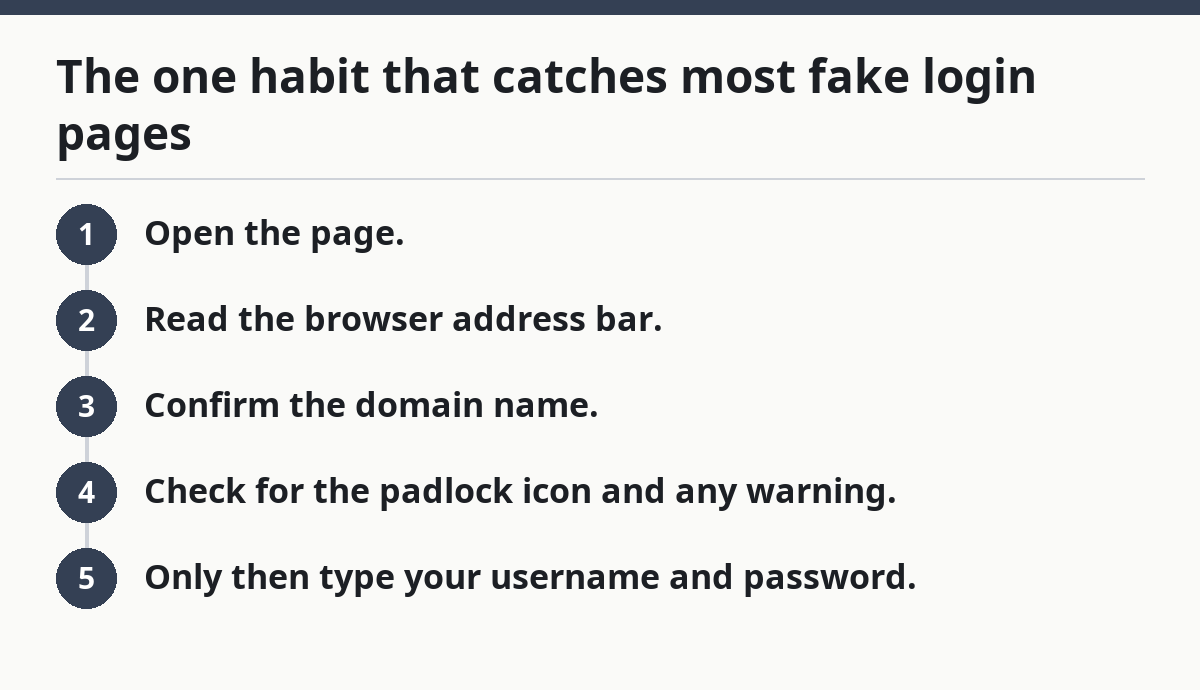
That routine works because it uses the parts scammers have the hardest time hiding. It also fits the way teens actually browse — on phones, between tabs, and while moving fast.
If the page came from a message, the safest move is to ignore the message link and go to the site another way. That keeps the login page tied to a source you trust instead of a URL someone handed you. For more help with teen online money safety and scam prevention, the hub page on this topic is the right next stop.
What are signs of a fake login page?
A fake login page often shows a wrong domain name, a missing or weak-looking padlock icon, browser warnings, spelling mistakes, or a URL that does not match the site you expected. The page can still look polished, so the address bar matters more than the colors or logo.
How can a teen verify a website address?
A teen can verify a website address by reading the full URL in the browser address bar and checking the exact domain name, not just the brand logo. The safest comparison is against a bookmark, a typed address, or the official app, not a link from a message.
Should a teen ever log in through a link in a message?
A teen should avoid logging in through a link in a message if there is any doubt at all. A text, DM, or email can send you to a lookalike domain, even when the page looks right at first glance. It takes only a few seconds to open the site another way.
What if a login page looks different than usual?
A login page that looks different than usual deserves a pause, not blind trust. Compare the browser address bar, the domain name, and the layout against a known-good version of the site. If the page also shows a warning or a strange URL, treat it as suspicious.
Drafted with AI; not yet reviewed by a person.